Knowledge Base Videos
Ask AI

Sections

  • Getting Started
  • User Home Page
  • Manage Business
    • Overview
    • Switch Business
    • Back to User Home Page
    • Logout
    • Subscribe to a Plan
    • Open Orders
    • Payment History
    • Dashboard
    • Quick Create
    • Item
  • Settings
  • Vendors
  • Customer
  • Item
  • Accounting
  • Report
  • POS
  • Terms of Use

Quick Create

Last updated: Oct 15, 2026

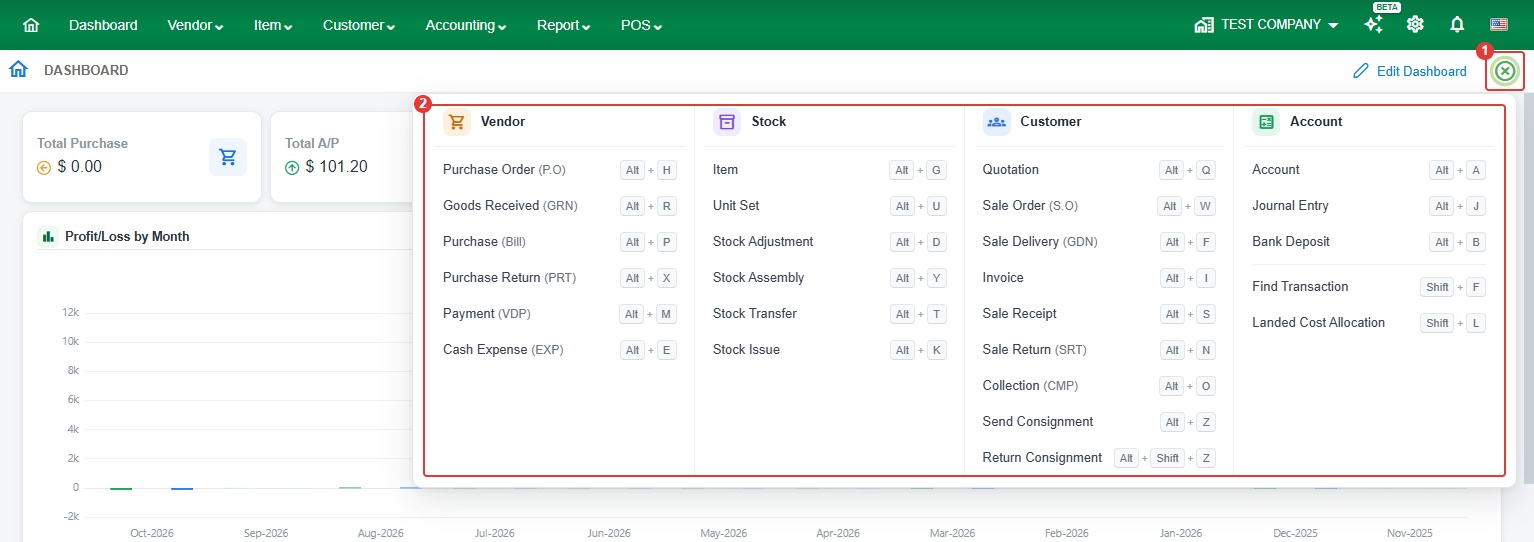
You can instantly add customers and vendors, create different sales and purchase transactions, and much more by clicking the quick create button.

Here’s how:

  1. Click the Plus icon in the top right corner​​ of the page.
  2. Select the function for which you want to create a new entry.
Dashboard

Learn how to use the Dashboard to monitor your business performance and access key financial information at a glance.

Item

How to view, add, and edit items (products, services, assembled products, and packages) in LocalizeBook: Item list, item types, General Information, General Info, Stock Information and Sale Information tabs, accounts, units, prices, and barcodes.

Related Articles

Overview

Manage multiple businesses and switch between them in LocalizeBook.

Read article

Switch Business

Read article

Back to User Home Page

Read article

Logout

Read article