Discounts let you set up automatic discount rules, for example 10% off a group of items on weekends, or a fixed amount off for a type of customer during a promotion period. You set up discount rules in Settings > Discount.
Note: Discount rules set up here apply to the POS function only. To give a one-off discount on every line of an invoice, purchase, or POS sale, use Discount All on the document instead.
Where to find it
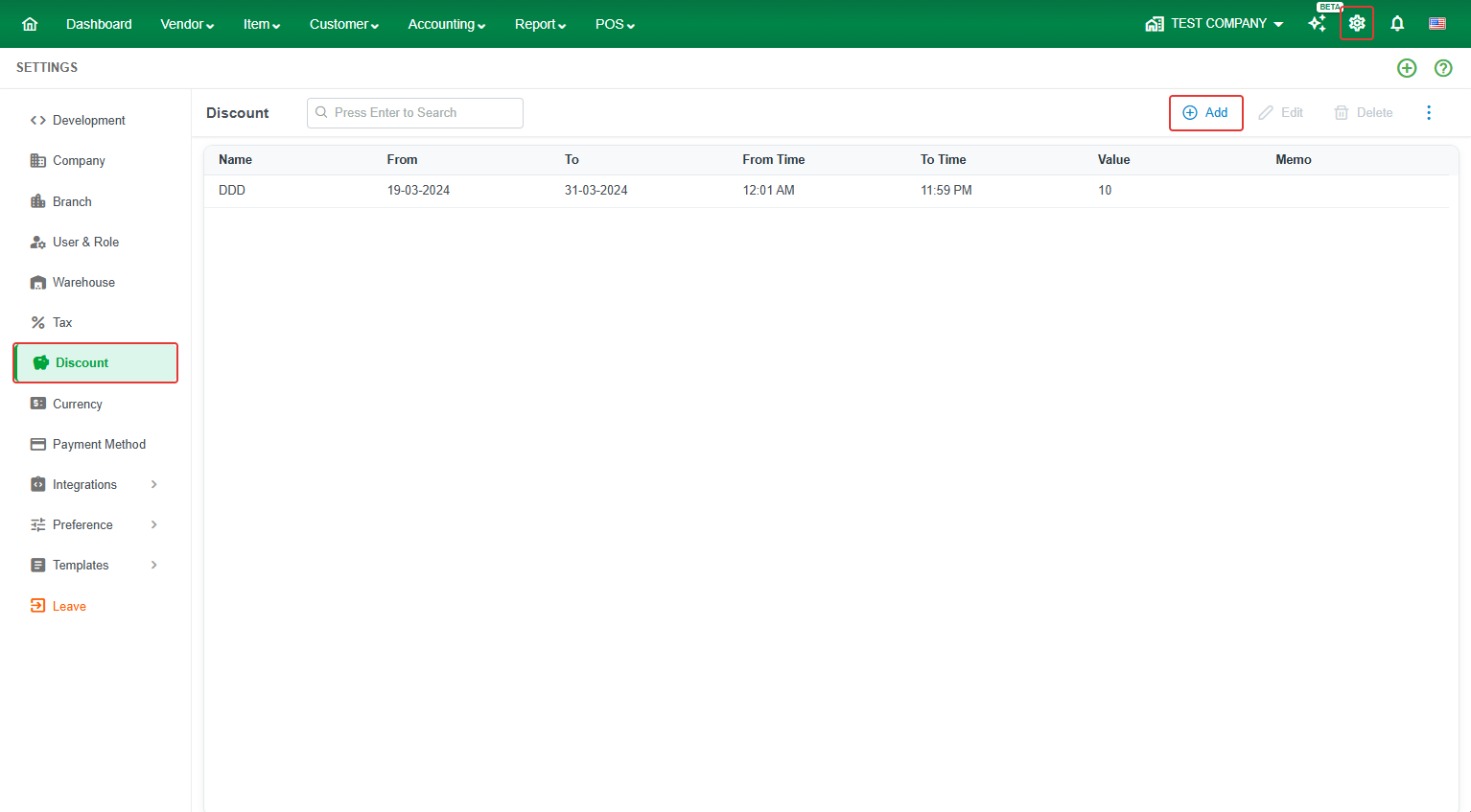
Click the Settings (gear) icon at the top right, then click Discount. The Discount page lists your discount rules with their Name, From, To, From Time, To Time, Value, and Memo. Use the toolbar to Add, Edit, Delete, Print All, or Export All, and the search box to find a discount by name.
Create a discount
- Go to Settings > Discount.
- Click Add. The Add Discount window opens.
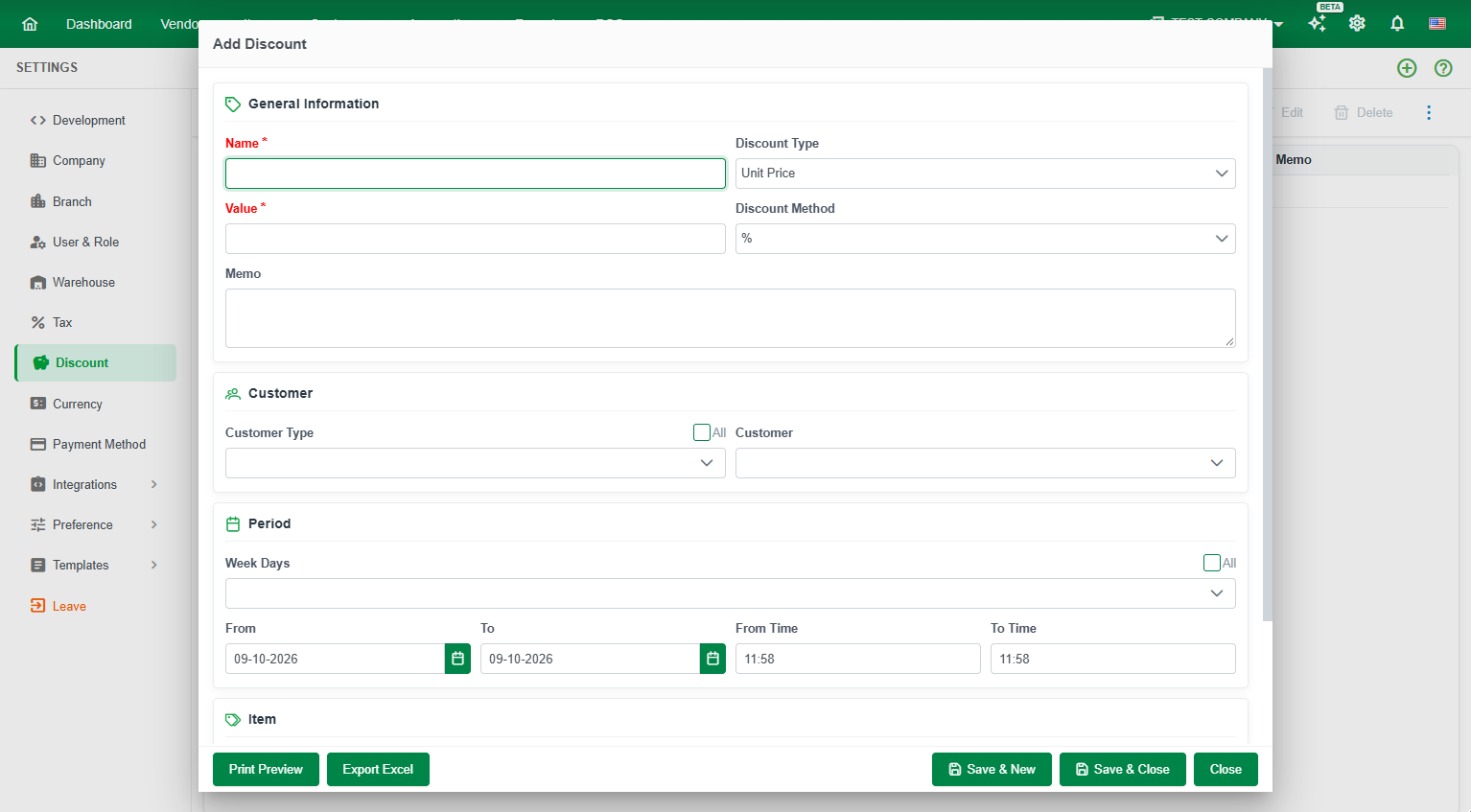
Fill in the four sections of the form:
General Information
- Name (required) – A name for the discount, for example "Weekend 10%".
- Discount Type – How the discount is applied. Unit Price applies the discount to the price per unit of each item.
- Value (required) – The discount amount or percentage.
- Discount Method – % treats the Value as a percentage. Amt treats the Value as a fixed amount.
- Memo – Any note about the discount.
Customer
- Customer Type – The customer types that get the discount. Tick All to apply it to every customer type.
- Customer – A specific customer who gets the discount.
Period
- Week Days – The days of the week the discount applies. Tick All for every day.
- From and To – The start and end dates of the discount.
- From Time and To Time – The time of day the discount starts and ends, for example for a happy hour.
Item
- Item Group – The item groups the discount applies to. Tick All for every item group.
- Item Brand – The item brands the discount applies to. Tick All for every brand.
- Item – Specific items the discount applies to.
- Except Item – Items that are excluded from the discount, even if they are in a selected group or brand.
When you are done, click:
- Save & New – save this discount and start another one.
- Save & Close – save this discount and close the window.
- Close – close without saving.
You can also click Print Preview to preview the discount, or Export Excel to download it as an Excel file.
Edit a discount
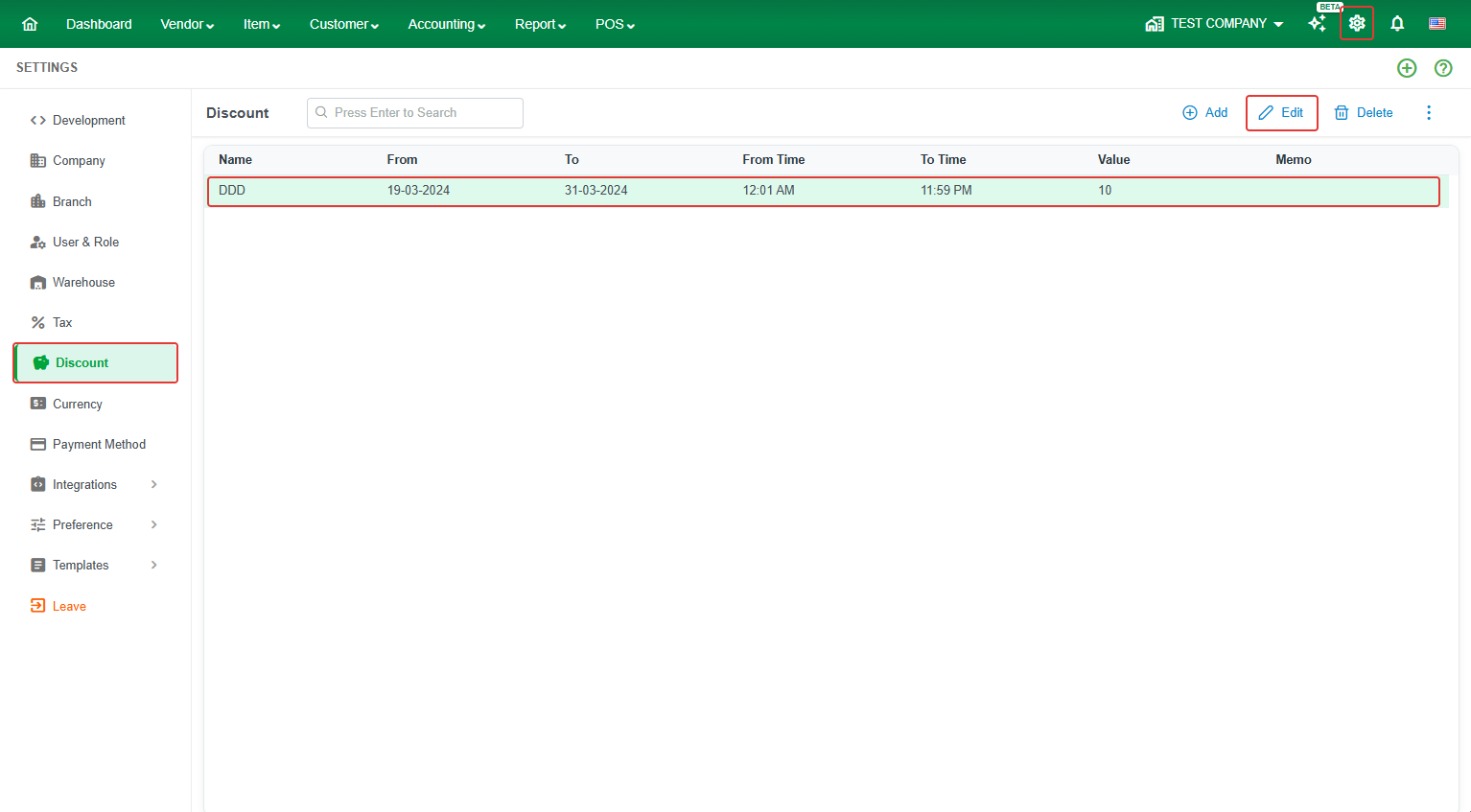
- Go to Settings > Discount.
- Click the discount you want to change.
- Click Edit, make your changes, and save.
Delete a discount
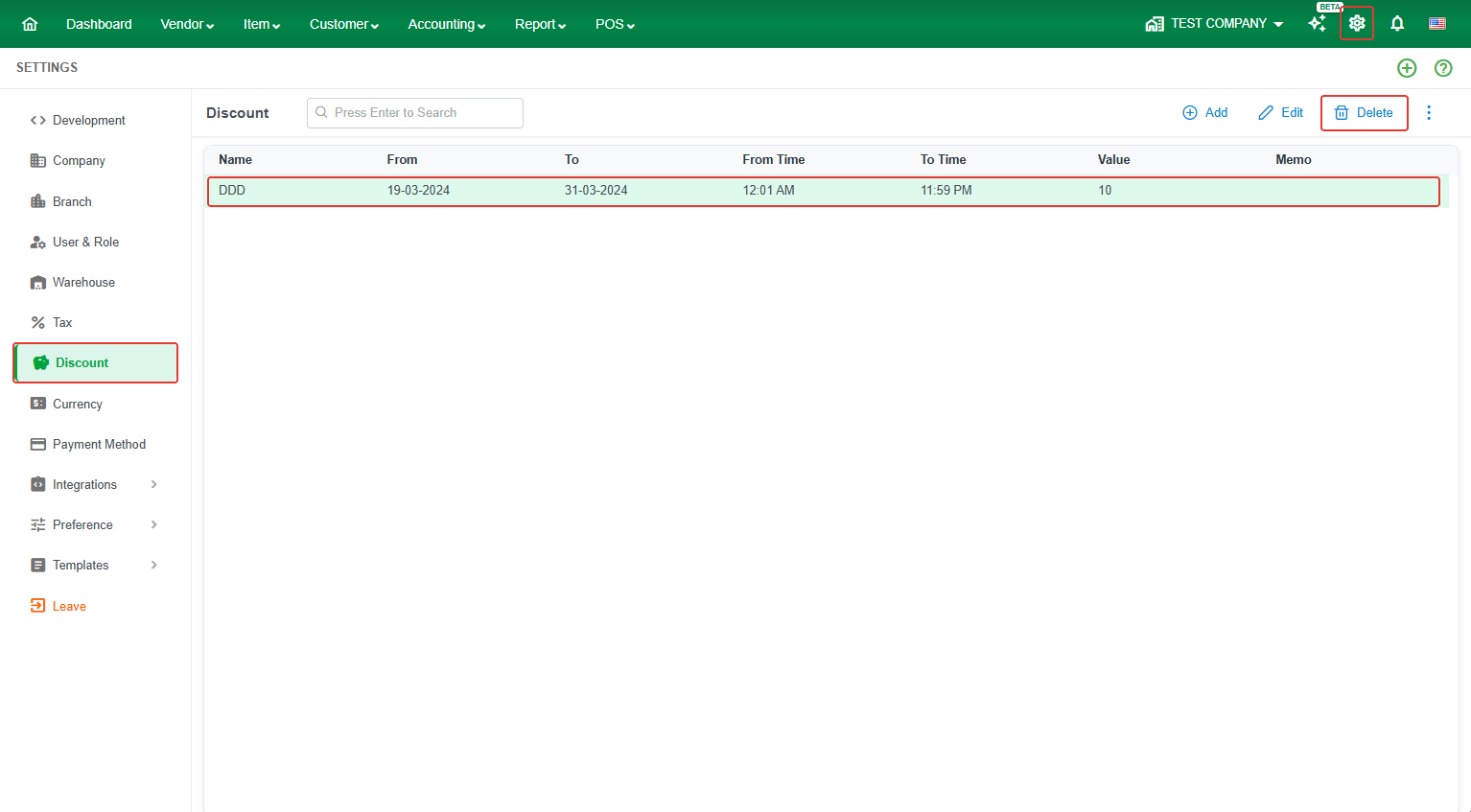
- Go to Settings > Discount.
- Click the discount you want to remove.
- Click Delete.
Common questions
How do I set up a weekend discount? Add a discount, enter the Value and Discount Method, and under Week Days choose Saturday and Sunday.
How do I give a discount only during certain hours? Set From Time and To Time in the Period section.
How do I exclude some items from a group discount? Select the item group, then add those items in Except Item.
Does a discount rule apply to invoices? No. Discount rules apply to POS only. On invoices, purchases, and other documents, type the discount on each line or use Discount All.
What is the difference between % and Amt? With %, a Value of 10 means 10% off. With Amt, a Value of 10 means 10 off in your currency.