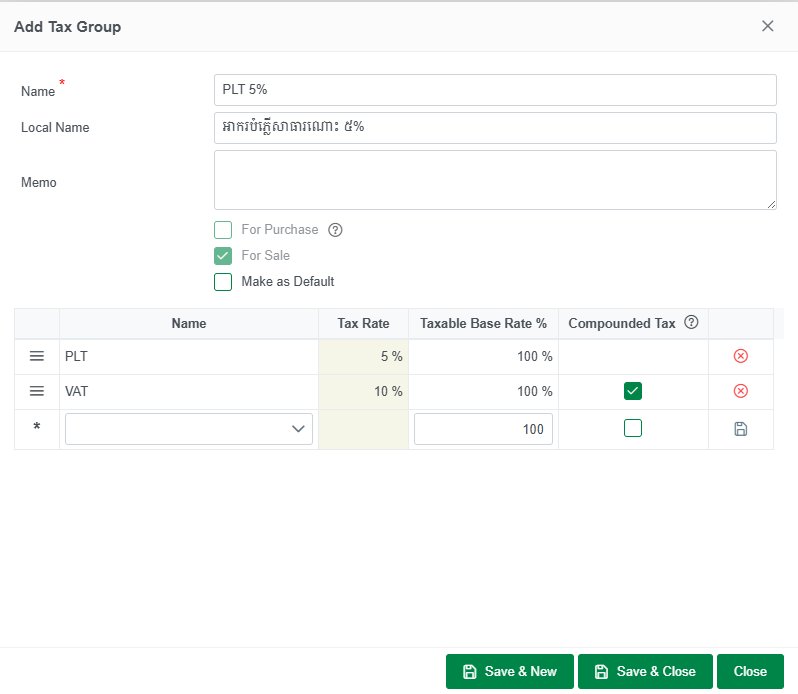
A Tax Group allows you to combine one or more tax rates into a single tax configuration. Once created, it can be assigned to transactions to ensure taxes are calculated consistently based on your business requirements.
- Go to Settings > Tax > Tax Group.
- Click Add Tax Group.

General Information
Complete the following fields:
- Name – Enter a unique name for the tax group.
- Local Name – Enter the tax group's name in the local language (optional).
- Memo – Enter additional notes or a description for the tax group (optional).
Transaction Type
Select where the tax group can be used:
- For Purchase – Makes the tax group available for purchase transactions.
- For Sale – Makes the tax group available for sales transactions.
- Make as Default – Sets the tax group as the default selection for new transactions.
Tax Configuration
Configure the tax rates included in the tax group.
- Name – Select the tax you want to include in the tax group. You can add one or more taxes if required.
- Tax Rate – Displays the rate of the selected tax automatically.
- Taxable Base Rate (%) – Specifies the percentage of the transaction amount used to calculate the selected tax. The default value is 100%.
- Compounded Tax – Enable this option to calculate the selected tax on top of the transaction amount plus any previously applied taxes within the same tax group.
Example: If a tax group includes Public Lighting Tax (5%) and VAT (10%), enabling Compounded Tax for VAT calculates VAT after the Public Lighting Tax has been applied.
Click Save & New to save the tax group and create another one, or click Save & Close to save the tax group and return to the Tax Group list.
Note: If Compounded Tax is not selected, each tax is calculated independently based on its own taxable base and does not include any previously calculated taxes.