A Customer Credit Note (also called a Credit Memo) reduces or clears the amount a customer owes on a previous sales invoice, for example when the customer returns goods or was overcharged. In LocalizeBook, you record a customer credit note with a Sale Return (SRT) transaction and apply the credit to the customer's open invoice in the Set Credit tab.
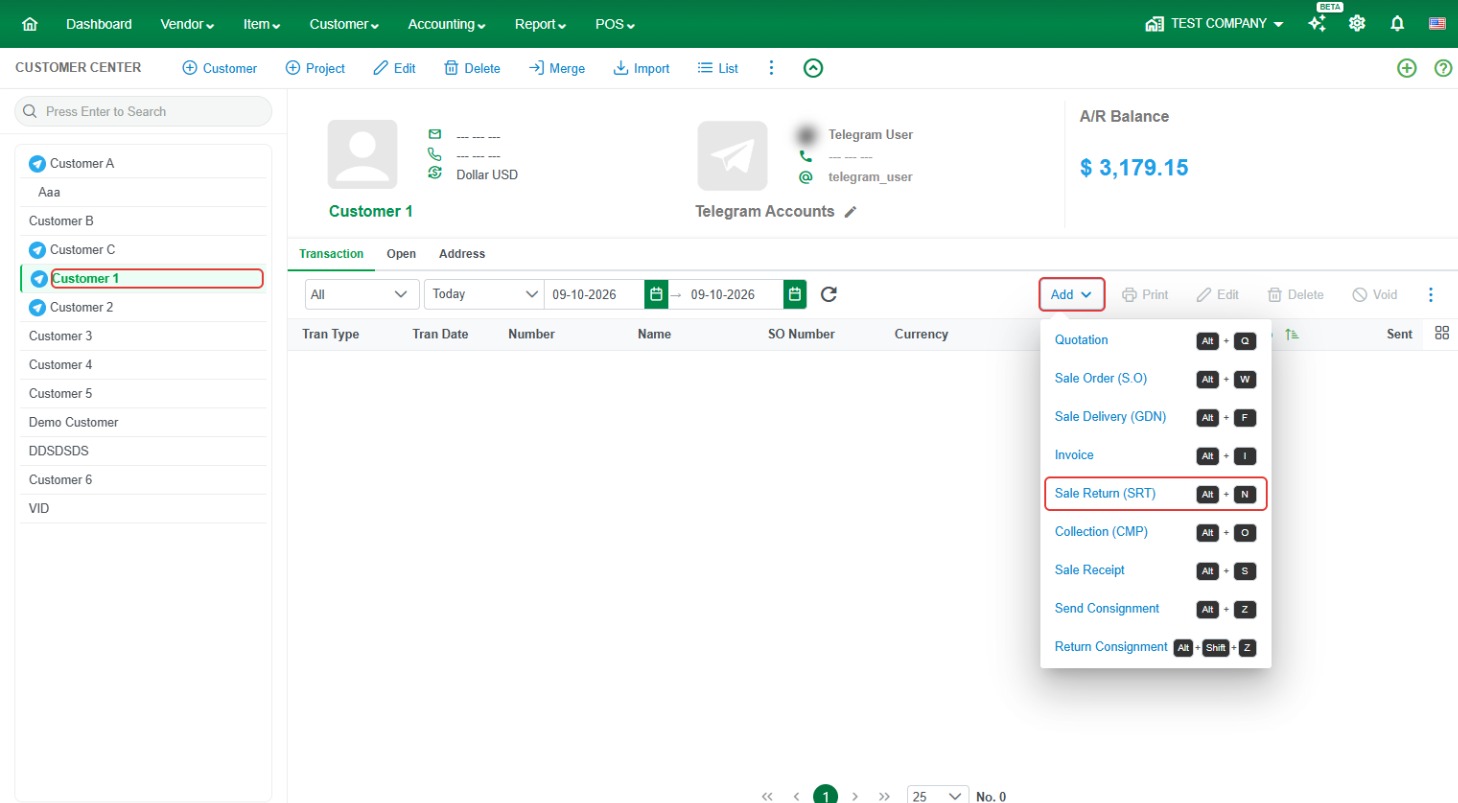
Where to find it: Customer > Customer Center > select the customer > Add > Sale Return (SRT). Keyboard shortcut: Alt + N.
How to create a customer credit note
Step 1. Go to Customer > Customer Center.
Step 2. In the customer list on the left, select the customer you want to give the credit note to.
Step 3. Click Add and choose Sale Return (SRT), or press Alt + N.
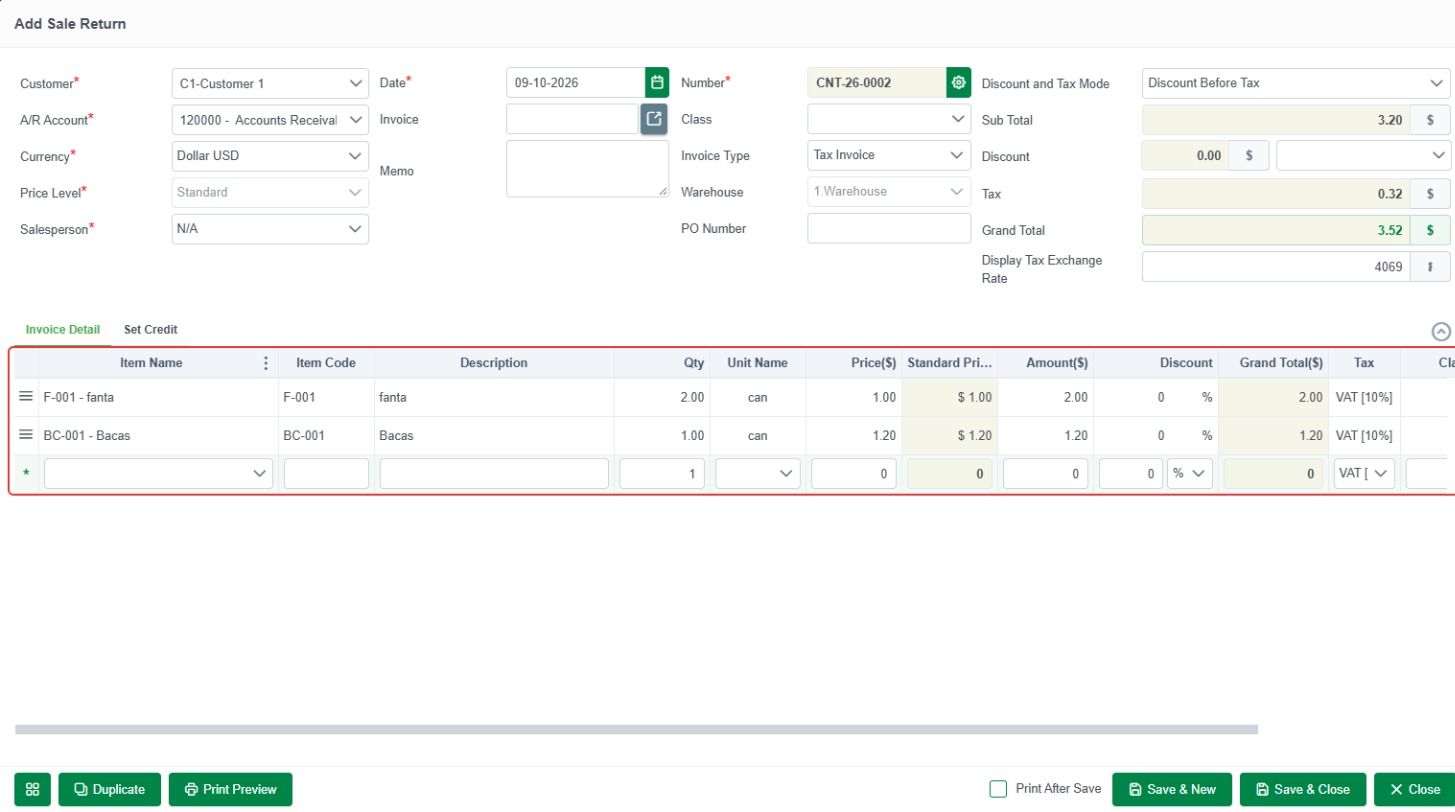
Step 4. In the Add Sale Return window, check the Customer, A/R Account, Currency, Date, and Invoice Type (for example Tax Invoice). The Number (for example CNT-26-0002) is generated automatically. On the Invoice Detail tab, add the items, quantities, and prices you are crediting. LocalizeBook calculates the Sub Total, Tax, and Grand Total.
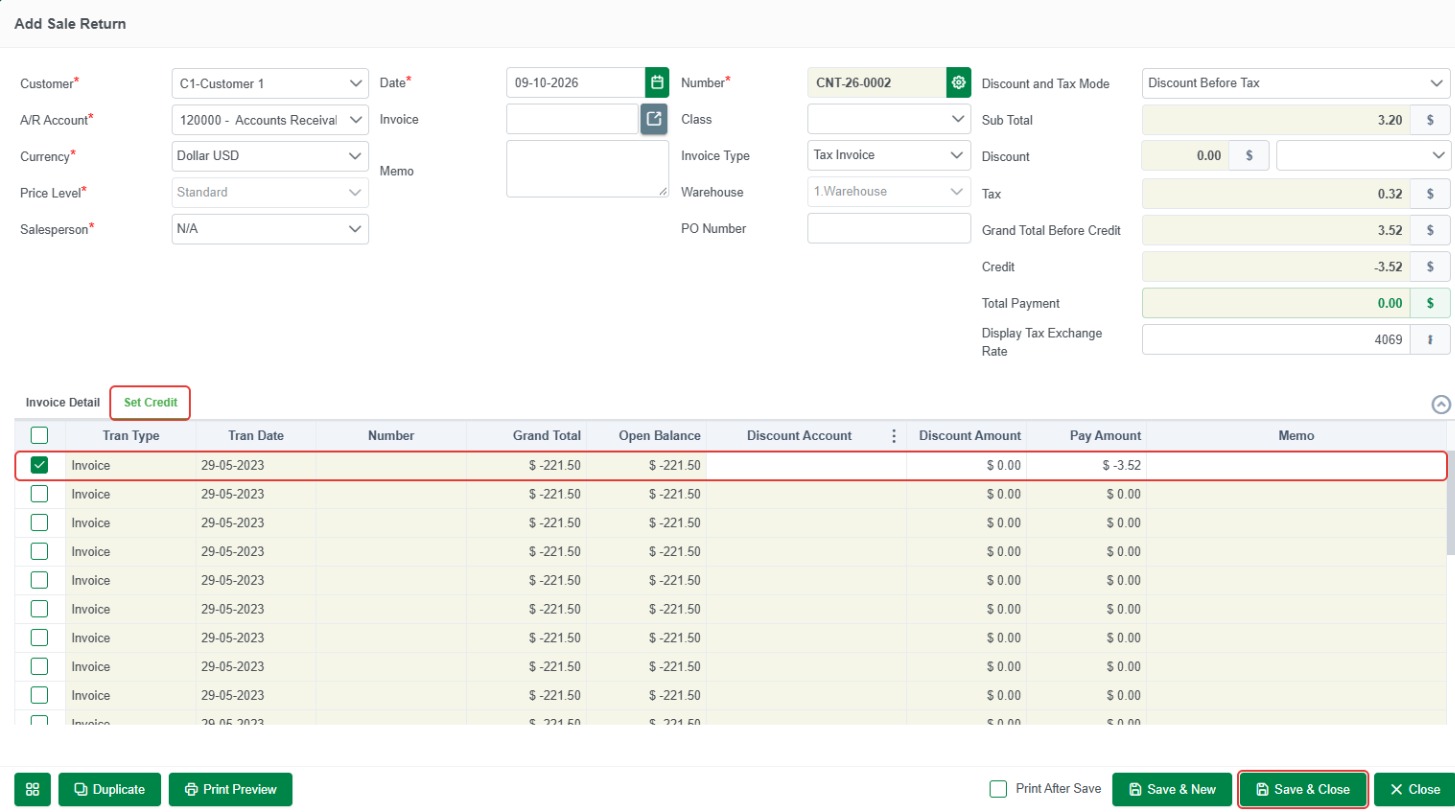
Step 5. Open the Set Credit tab. Tick the invoice you want to apply the credit to. The Pay Amount column shows the credit applied, and the Credit and Total Payment fields update. Then click Save & Close (or Save & New to create another one).
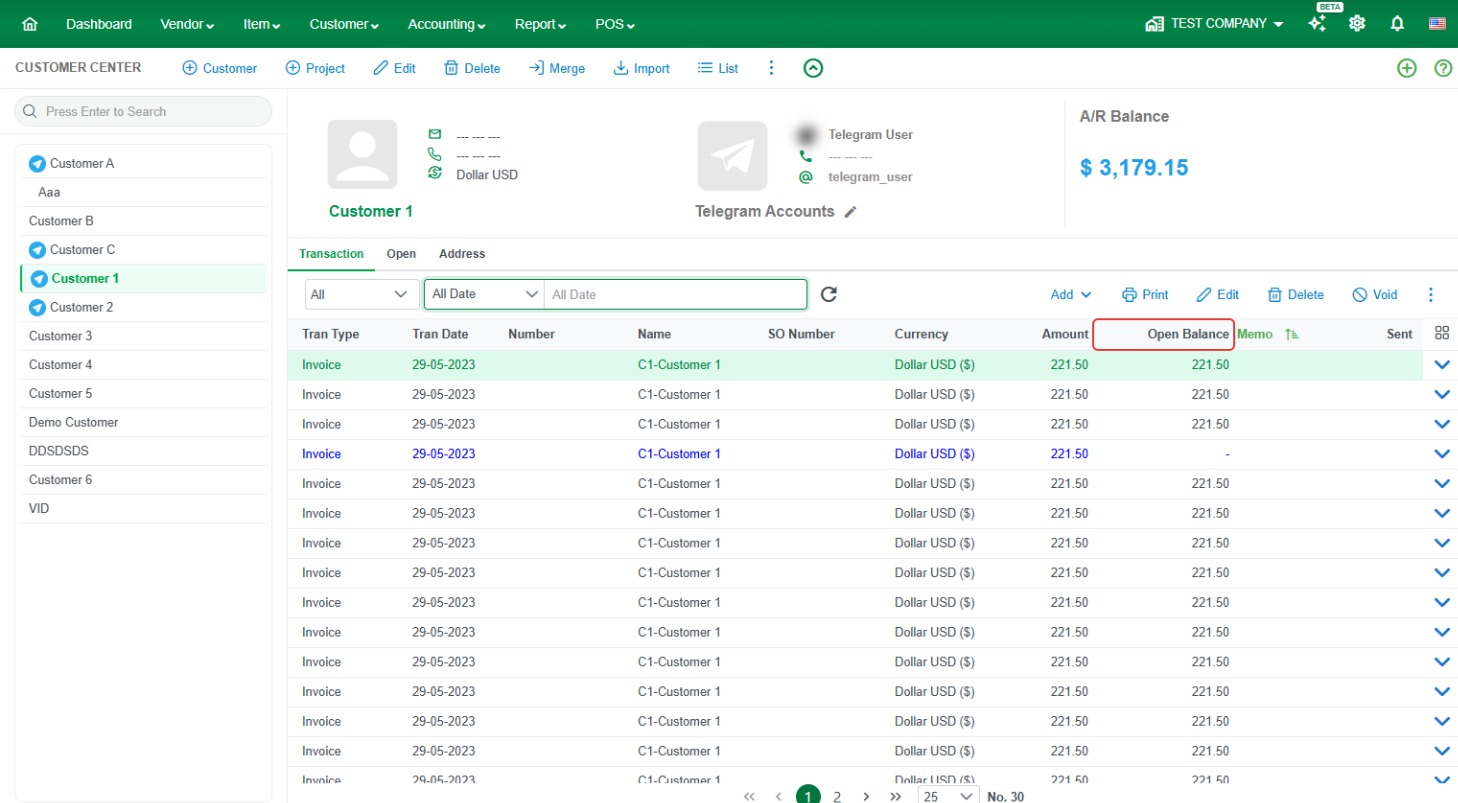
Step 6. Check the result in Customer Center. The Open Balance of the invoice is reduced by the credit amount, and the customer's A/R Balance goes down.
Good to know
- A credit note always relates to a customer. Select the right customer before you click Add.
- Use Print Preview in the Sale Return window to print or check the credit note before saving.
- For credit notes you receive from vendors, see the Credit Note article in the Vendors section.
Frequently asked questions
How do I create a credit note for a customer?
Go to Customer > Customer Center, select the customer, click Add > Sale Return (SRT) (Alt + N), add the items to credit, apply the credit to an invoice in the Set Credit tab, and click Save & Close.
What is the difference between a credit note and a sale return in LocalizeBook?
They are recorded with the same transaction. A customer credit note is created as a Sale Return (SRT).
How do I reduce the balance of an unpaid invoice?
Create a Sale Return (SRT) for the customer and tick that invoice in the Set Credit tab. The invoice's Open Balance is reduced by the credit amount.
Where can I see that the credit was applied?
In Customer Center, select the customer. The invoice's Open Balance and the customer's A/R Balance show the reduced amount.
What is the keyboard shortcut for Sale Return?
Alt + N.