A Sale Delivery (GDN) in LocalizeBook records the goods you deliver to a customer. GDN stands for goods delivery note. The delivered quantities leave your stock. A sale delivery lists the items and quantities delivered, and you can print it to go with the shipment so the customer can check that everything arrived. A sale delivery is also called a delivery note, dispatch note, delivery order or GDN.
Where a sale delivery fits in the sales process
The sales process in LocalizeBook is: Customer → Quotation (optional) → Sale Order (optional) → Sale Delivery (GDN, optional) → Invoice → Collection (CMP).
- Create a sale delivery when you deliver goods to the customer before you issue the invoice.
- A sale delivery reduces your stock in the warehouse you select. It does not bill the customer; you bill the customer with an Invoice.
- A sale delivery is optional. You can invoice the customer without a sale delivery, or use a Sale Receipt for a cash sale.
- You can create a sale delivery from one or more sale orders, from a quotation, or on its own without either.
How to create a sale delivery
Step 1: Open the Add Sale Delivery form
- Go to Customer > Customer Center.
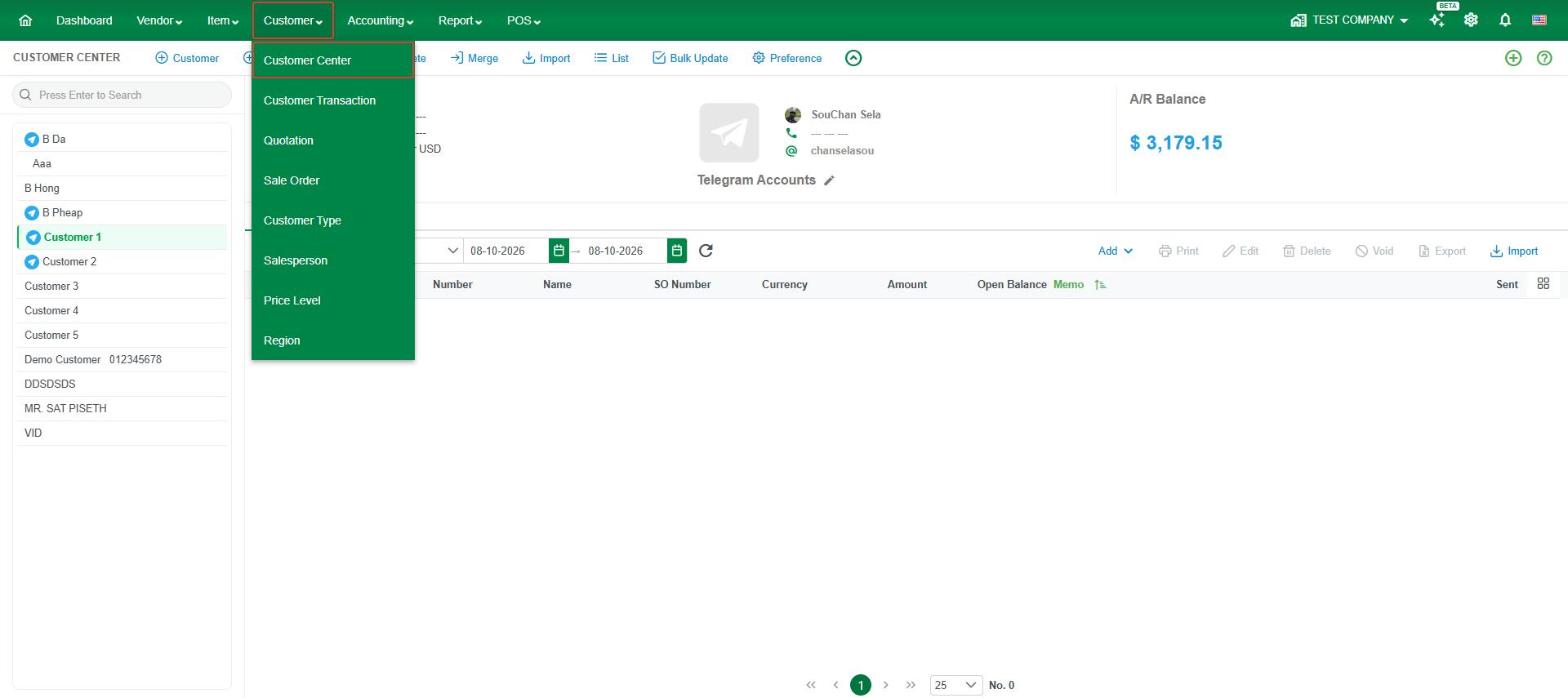
- Select the customer in the list on the left.
- On the Transaction tab, click Add, then click Sale Delivery (GDN).
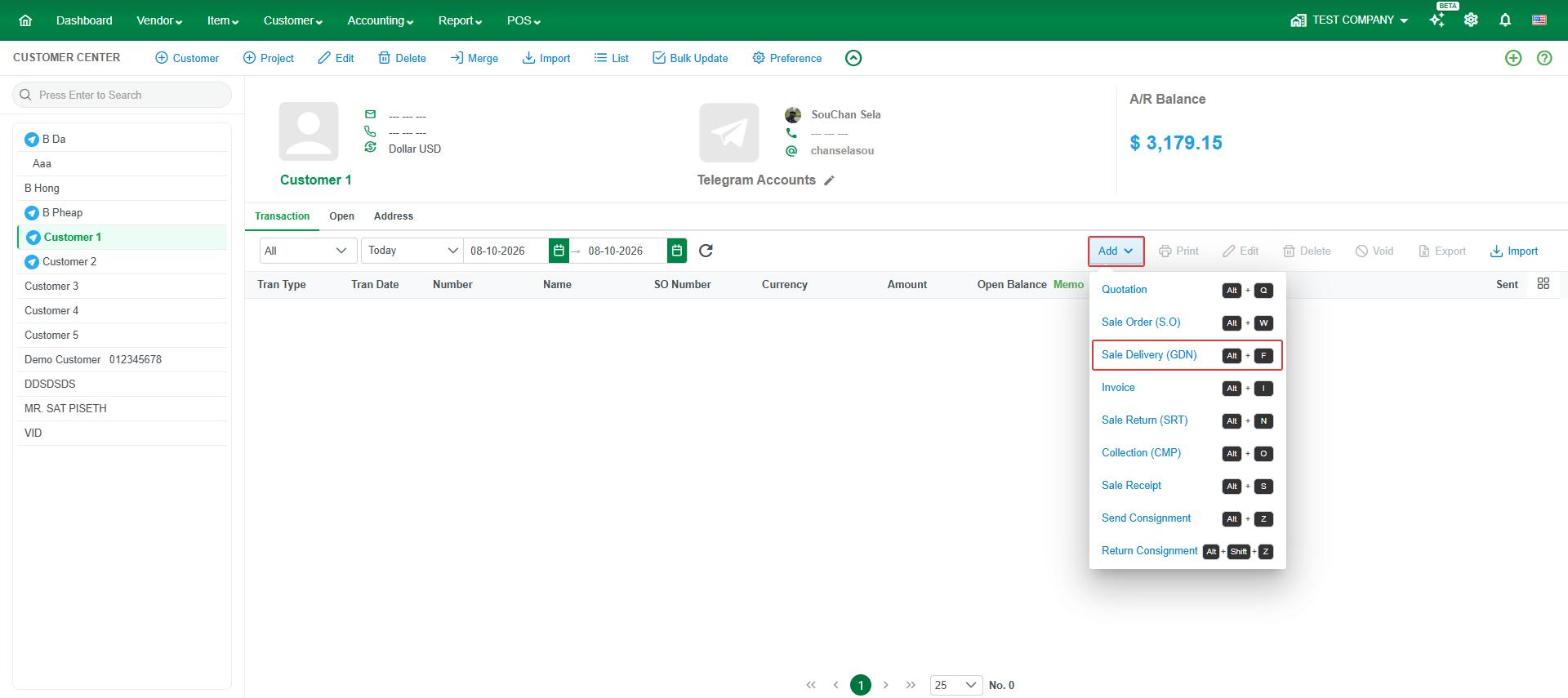
Other ways to open the same form:
- Go to Customer > Customer Transaction, click Add and choose Sale Delivery (GDN).
- Click New Transaction on the home page and choose Sale Delivery (GDN) under Customer.
- On the home page, in How LocalizeBook works > Sales, click the info icon on Sale Delivery, then click New Sale Delivery.
- Press Alt + F (keyboard shortcut).
Step 2: Pull in a sale order or quotation
If the customer has a sale order or quotation, pull it in so you don't have to type the items again:
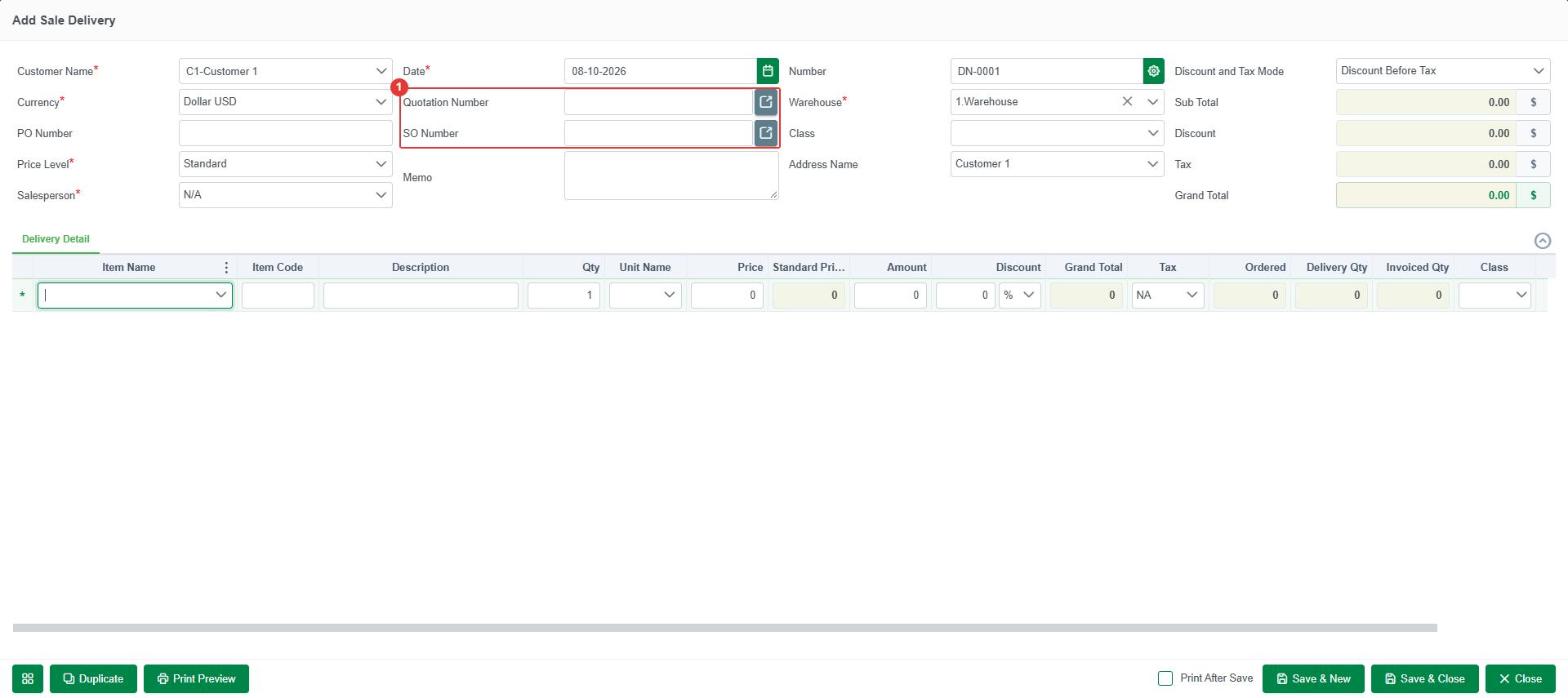
- Select the Customer Name. The buttons next to SO Number and Quotation Number become active after you select a customer.
- Click the button next to SO Number to deliver a sale order, or next to Quotation Number to deliver a quotation (number 1 in the screenshot).
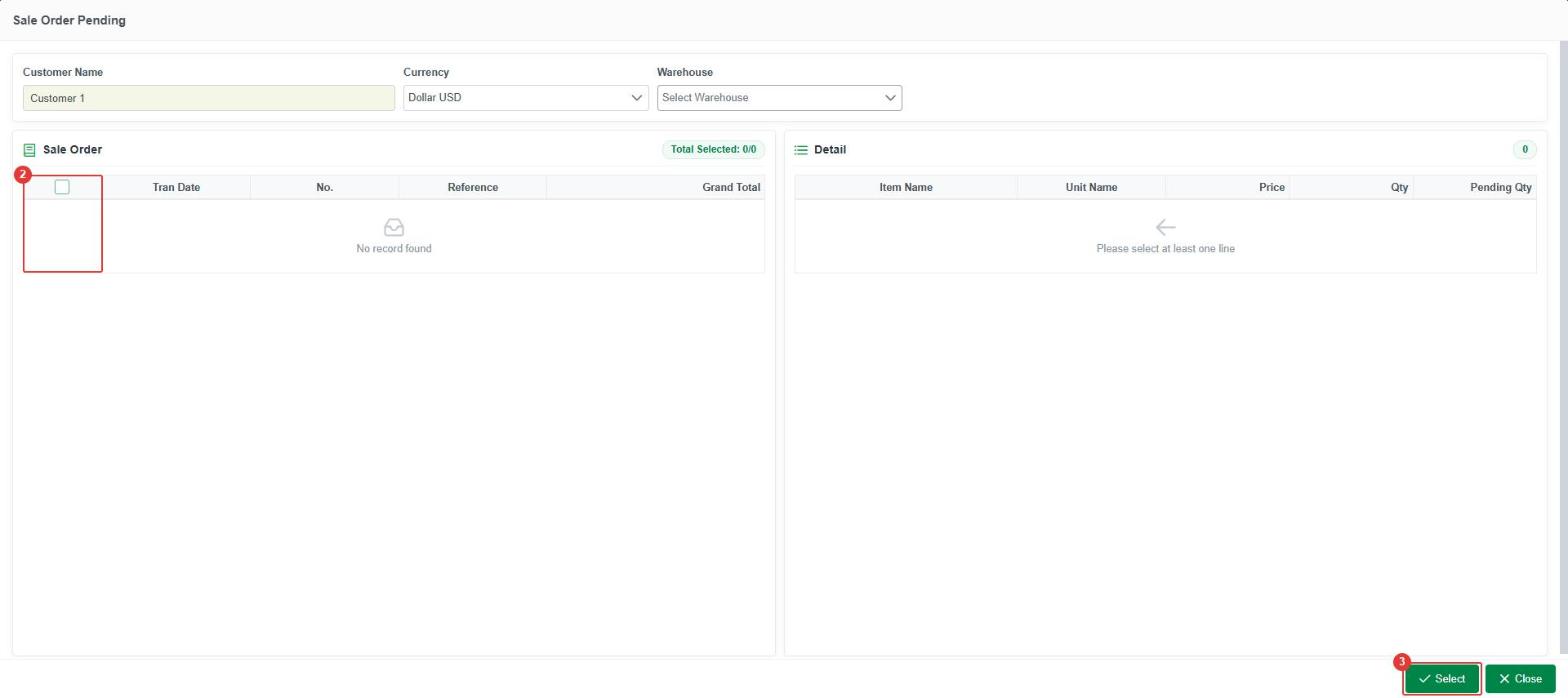
- In the Sale Order Pending window, tick one or more sale orders (number 2). The Detail panel shows each item's Qty and Pending Qty, which is the quantity not yet delivered.
- Click Select (number 3). The items are copied into the Delivery Detail.
- If you are delivering only part of the order, change the Qty on the line. The rest stays on the sale order as Back Order and can be delivered later.
For a quotation, the Quotation Pending window lists the customer's pending quotations. Choose one and click Select.
If there is no sale order or quotation, skip this step and enter the items directly in the Delivery Detail.
Step 3: Check the sale delivery fields
Required fields are marked with *: Customer Name, Currency, Price Level, Salesperson, Date and Warehouse.
Customer and pricing fields
- Customer Name* – the customer you are delivering to. When you select a customer, LocalizeBook fills in the customer's settings, such as Currency, Price Level and Address Name. A green note under the field shows which values came from the customer. To create a new customer, click + Add at the top of the list.
- Currency* – the currency of the sale delivery.
- PO Number – the customer's purchase order number.
- Price Level* – the price list used for the items, for example Standard or Wholesale.
- Salesperson* – the salesperson for this delivery. Choose N/A if there is none.
Note: Currency and Price Level are locked once you add an item line.
Date and reference fields
- Date* – the delivery date. It defaults to today.
- Quotation Number – the quotation this delivery comes from, if any.
- SO Number – the sale order this delivery comes from, if any.
- Memo – notes about the whole sale delivery.
Number, warehouse and address fields
- Number – the sale delivery number, created automatically (for example DN-2026-11-0001). By default the numbers include the year and month and restart every month. To change the numbering, click the gear icon next to the number to open Format Sale Delivery No. There you can set Auto Generate, Allow Edit Ref Num, Allow Duplicate, Auto Increment from Last Transaction, the Prefix, the date format, the Sequence Size and Reset By.
- Warehouse* – the warehouse the goods leave from. Stock is reduced in this warehouse.
- Class – shown only in companies that track classes.
- Address Name – the customer address to deliver to. It is filled in from the customer; choose another address if the customer has more than one.
Discount, tax and total fields
- Discount and Tax Mode – how discount and tax are calculated: Discount Before Tax (default), Discount After Tax or Discount on Net.
- Sub Total, Discount, Tax and Grand Total – calculated automatically from the item lines.
- Adjustment – an optional amount to adjust the total. Show or hide it with Custom Display (see Step 4).
Delivery Detail (item lines)
- Item Name – the item delivered. Item Code and Description fill in automatically. To create a new item, click + Add at the top of the list. Click ⋮ in the Item Name header to choose what is shown for each item.
- Qty – the quantity you are delivering now.
- Unit Name – the unit of measure.
- Price – the selling price, taken from the Price Level. You can change it.
- Standard Price – the item's standard price, shown for comparison. Read-only.
- Amount – Qty × Price.
- Discount – a discount for the line, as a percentage (%) or an amount. Click the Discount All icon in the column header to apply one discount to every line.
- Grand Total – the line total after discount.
- Tax – the tax for the line (NA means no tax).
- Ordered, Delivery Qty and Invoiced Qty – read-only quantities for lines that come from a sale order: the quantity ordered, the quantity delivered and the quantity invoiced.
- Memo – a note for this line only.
To add each line, fill it in and click the save icon at the end of the line. The line is added and a new empty line appears for the next item. To remove a line, click its red delete icon. To change the order of the lines, drag the handle (≡) at the start of a line.
Step 4: Save the sale delivery
- Save & New – save the sale delivery and start a new one.
- Save & Close – save the sale delivery and close the form.
- Close – close the form without saving.
- Print After Save – tick this box to print the delivery note right after saving.
- Print Preview – see and print the delivery note to send with the goods.
- Duplicate – copy this sale delivery to create a new one with the same details.
- Custom Display (grid icon at the bottom left) – choose which fields and columns appear on the form, for example Truck No, Customer Address, Adjustment or the On Hand column.
How to invoice a sale delivery
After you deliver the goods, bill the customer: open Add Invoice for the same customer, click the button next to Sale Delivery and select the delivery. The items are copied into the invoice. If the delivery came from a sale order, the sale order's Delivery Status and Invoice Status update automatically.
How to find, edit, void or delete a sale delivery
Find a sale delivery
- Go to Customer > Customer Transaction. Set the transaction type filter to Sale Delivery and the date to All Date (the date filter starts at Today). The list shows Customer, Tran Type, Tran Date, Number, SO Number, Currency, Amount, Open Balance and Memo.
- Or go to Customer > Customer Center, select the customer, open the Transaction tab and set the date to All Date.
Edit, void or delete a sale delivery
In Customer > Customer Center, select the customer, open the Transaction tab (set the date to All Date to see older sale deliveries), click the sale delivery, then click Edit, Void or Delete above the list.
- Edit – change the sale delivery, then click Save & Close.
- Void – cancels the sale delivery but keeps it in the list, shown in red.
- Delete – removes the sale delivery completely.
Note: A sale delivery that has been invoiced can't be voided or deleted.
Sale Delivery report
To review your sale deliveries, go to Report > Sales & Receivables > Sale Delivery. See the Sale Delivery Report article for details.
Frequently asked questions about sale deliveries
What is a GDN in LocalizeBook?
GDN means goods delivery note. In LocalizeBook it is the Sale Delivery, which records the goods you deliver to a customer.
What is the difference between a sale delivery and an invoice?
A Sale Delivery records the goods leaving your stock. An Invoice bills the customer for the amount they owe. You can deliver first and invoice later, or invoice without a sale delivery.
Does a sale delivery reduce my stock?
Yes. The delivered quantities leave your stock in the warehouse selected on the sale delivery.
Do I have to create a sale delivery before an invoice?
No. A sale delivery is optional. You can create an Invoice directly, or use a Sale Receipt for a cash sale.
Can I create a sale delivery without a sale order?
Yes. Leave SO Number empty and enter the items directly in the Delivery Detail. You can also create a sale delivery from a quotation.
How do I deliver a sale order?
In the Add Sale Delivery form, select the customer, click the button next to SO Number, tick the sale order in the Sale Order Pending window and click Select.
Can I deliver a sale order in several parts?
Yes. Change the Qty on the sale delivery to the quantity you are sending now. The rest stays on the sale order as Back Order, and you can deliver it later with another sale delivery.
Can one sale delivery include several sale orders?
Yes. In the Sale Order Pending window, tick all the sale orders for that customer that you want to deliver together, then click Select.
Why is the button next to SO Number or Quotation Number greyed out?
Select the customer first. The buttons become active after you choose a Customer Name.
How do I invoice a sale delivery?
In the Add Invoice form, click the button next to Sale Delivery and select the delivery.
How do I print a delivery note?
Click Print Preview in the sale delivery form, or tick Print After Save before you save.
How do I change the sale delivery number format?
In the Add Sale Delivery form, click the gear icon next to Number to open Format Sale Delivery No, change the settings and click Save.
Why can't I find a sale delivery I created?
The date filter starts at Today. In Customer Transaction or Customer Center, change the date to All Date.
Why can't I void or delete a sale delivery?
A sale delivery that has been invoiced can't be voided or deleted.
What is the keyboard shortcut for a new sale delivery?
Press Alt + F to open a new sale delivery.