Unearned Revenue is a payment received from a customer before the related goods or services have been delivered. Since the revenue has not yet been earned, the amount is initially recorded as a liability on the Balance Sheet. As the goods are delivered or services are performed, the unearned revenue is gradually recognized as income.
Before using the Unearned Revenue feature, go to Settings and activate Unearned Revenue. This feature requires the Purchasing Add-on.
Create Account Chart
Create an Unearned Revenue account to record customer payments received in advance.
- Go to Accounting → Chart of Accounts.
- Click Add.
- Set the Account Type to Other Current Liability.
- Enter the Account Code and Account Name (e.g., Unearned Revenue).
- Complete any additional information as needed.
- Click Save & Close or Save & New.
Note: The Unearned Revenue account must be created as an Other Current Liability account. This ensures customer payments received in advance are recorded as liabilities until the related goods or services are delivered.

Create an Unearned Revenue Service Item
Create a service item to record customer payments received in advance.
- Go to Items → Add Item.
- Set Item Type to Service.
- Enter the required information, including the Item Name and Item Group.
- In the Account field, select the Unearned Revenue account you created earlier.
- Configure the remaining fields as needed, then click Save & Close or Save & New.
Note: The selected account must be an Unearned Revenue (Other Current Liability) account. This ensures that customer payments received in advance are recorded as liabilities until the related goods or services are delivered and the revenue is recognized.

Create an Unearned Revenue Invoice
Once you have created the unearned revenue service item, you can record a customer payment to be recognized as revenue over multiple accounting periods.
- Go to Customer Center and select the customer.
- Click Add → Invoice.

- Enter the invoice details, including the customer, invoice date, and due date.
- Add the Unearned Revenue service item that you created earlier.
- Enable the Unearned Revenue checkbox for the item line.
- Review the transaction and click Save & Close or Save & New.
Note: Enabling the Unearned Revenue checkbox records the transaction as unearned revenue. The amount is posted to the Unearned Revenue (Other Current Liability) account and remains as a liability until it is recognized as revenue.

Allocate Unearned Revenue
After creating the unearned revenue invoice, you can allocate the revenue over multiple accounting periods.
- Go to Customer Center and select the customer.
- Locate the unearned revenue invoice.
- Click More Actions (▼) and select Unearned Revenue.
- Enter the allocation details:
- Allocate From – The first period to begin recognizing the revenue.
- Allocate To – The last period of the allocation.
- Number of Months – The total number of months to allocate.
- Unearned Revenue Account – The liability account used to record the unearned revenue.
- Revenue Account – The revenue account where the amount will be recognized.
- Review the allocation schedule generated by the system.
- Click Save to complete the allocation.
Note: The system automatically allocates the unearned revenue evenly across the selected period. As each period is posted, the balance is transferred from the Unearned Revenue account to the selected Revenue account until the full amount has been recognized.


Create an Unearned Revenue Journal
After creating the unearned revenue allocation, you can generate an unearned revenue journal to recognize the revenue for the selected accounting period.
- Go to Accounting → Journal Entry.
- Click Add Special → Add Unearned Revenue Journal.

- Review the journal entry generated by the system.
- Verify the Date, Memo, Debit, and Credit information.
- Click Save & Close or Save & New.
Note: The system automatically generates the journal entry based on the unearned revenue allocation schedule. The allocated amount is transferred from the Unearned Revenue account to the selected Revenue account for the selected accounting period. You only need to review the journal before saving.

View the Unearned Revenue Report
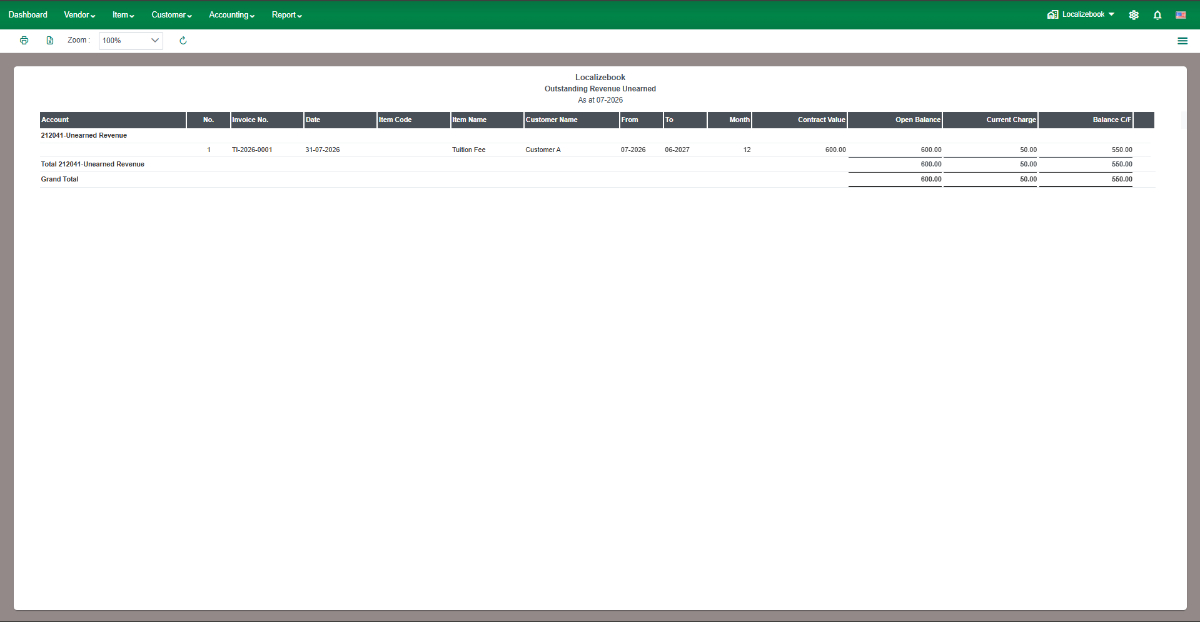
The Unearned Revenue Report provides an overview of all outstanding unearned revenue, including its allocation period, recognized revenue, and remaining balance.
- Go to Reports → Company & Finance → Unearned Revenue.
- Select the reporting period.
- Review the unearned revenue details, including:
- Account
- Invoice Number
- Invoice Date
- Item Name
- Customer
- Allocation Period (From – To)
- Number of Months
- Contract Value
- Open Balance
- Current Charge
- Balance C/F
- Print or export the report if needed.
Note: The Unearned Revenue Report tracks the remaining balance of each unearned revenue transaction throughout its allocation period. As unearned revenue journals are posted, the Current Charge increases and the Balance C/F decreases until the full amount has been recognized as revenue.