A Stock Transfer in LocalizeBook moves item quantities from one warehouse or branch to another. The total stock stays the same; only the location changes. Use it, for example, when you restock a shop from the main warehouse. A stock transfer is also called an inventory transfer, warehouse transfer or stock movement.
Note: A stock transfer only records the movement of stock between locations. It is not a sale or a purchase, and it does not change who owns the goods.
When to use a stock transfer
- Distribute stock from a central warehouse – send items from the main warehouse to the stores that need them.
- Improve availability across stores – move stock to the location where customer demand is highest.
- Restock between stores – when a product sells quickly at one store but is still available at another, move it to replenish stock.
- Separate damaged, spoiled or expired items – move them to a separate warehouse or storage location for inspection, handling or disposal.
- Prepare for a stock assembly – move components to the warehouse where you build the finished item.
Before you start: you need at least two warehouses. If From Warehouse and To Warehouse are the same, LocalizeBook shows "You could not transfer only one warehouse".
How to create a stock transfer
Step 1: Open the Add Stock Transfer form
- Go to Item > Stock Transfer.
- Click Add at the top right of the page.
Other ways to open the same form:
- Click New Transaction on the home page (or the + icon at the top right of a list page) and choose Stock Transfer under Stock.
- On the home page, in How LocalizeBook works > Stock, click the info icon on Stock Transfer, then click New Stock Transfer.
- Press Alt + T (keyboard shortcut).
Step 2: Fill in the stock transfer
The form has three areas, numbered in the screenshot below.
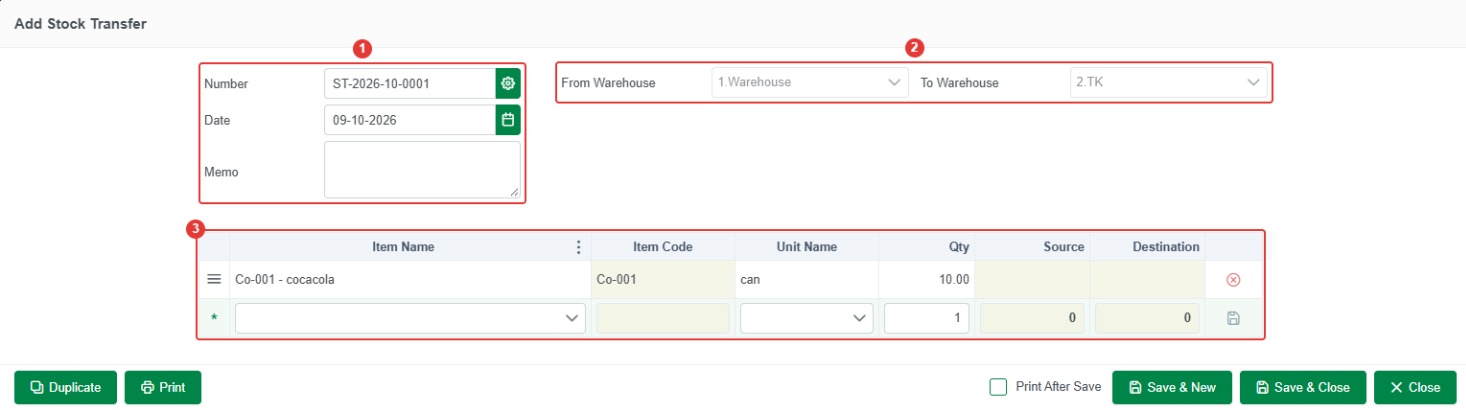
Area 1: Number, date and memo
- Number – created automatically, for example ST-2026-11-0001 (year and month). Click the gear icon to change the number format.
- Date – the date of the transfer. It defaults to today.
- Memo – the reason for the transfer, for example "Restock Riverside shop".
Area 2: Warehouses
- From Warehouse – the sender warehouse the items leave.
- To Warehouse – the receiver warehouse the items go to. It must be different from From Warehouse.
Area 3: Item lines
- Item Name – the item to move. To create a new item, click + Add at the top of the list.
- Item Code – filled in from the item.
- Unit Name – the unit of measure.
- Qty – the quantity to move.
- Source – the item's quantity in the From Warehouse.
- Destination – the item's quantity in the To Warehouse.
To add each line, click the save icon at the end of the line; a new empty line appears for the next item. Click the red delete icon to remove a line. Repeat until you have added all the items to move.
Step 3: Save the stock transfer
- Save & New – save the stock transfer and start a new one.
- Save & Close – save the stock transfer and close the form.
- Close – close without saving.
- Print After Save and Print – print the stock transfer, for example to send with the goods.
- Duplicate – copy this stock transfer to create a new one with the same details.
Important: Before saving, check the From Warehouse, To Warehouse, date, items and quantities.
How to find, edit, void or delete a stock transfer
Go to Item > Stock Transfer. The list shows Number, Date, From Warehouse, To Warehouse and Memo. The date filter starts at Today, so choose a wider date range to see older stock transfers, or type in the search box and press Enter. Click the stock transfer, then click Edit, Void or Delete above the list.
- Edit – change the stock transfer, then click Save & Close.
- Void – cancels the stock transfer but keeps it in the list, shown in red.
- Delete – removes the stock transfer completely.
Print All and Export All are also on this page (in the ⋮ menu on smaller screens). To review transfers, use the Stock Transfer Report.
Frequently asked questions about stock transfers
Does a stock transfer change my total stock?
No. The quantity goes down in the From Warehouse and up in the To Warehouse by the same amount, so the total stock stays the same.
Why do I get "You could not transfer only one warehouse"?
From Warehouse and To Warehouse are the same, or your company has only one warehouse. Create a second warehouse and choose different From and To warehouses.
Is a stock transfer a sale or a purchase?
No. It only moves stock between your own locations. Use an Invoice or Sale Delivery to sell, and a Purchase to buy.
How do I move components to the warehouse where I build products?
Create a stock transfer from the warehouse that has the components to the warehouse you will use on the Stock Assembly.
Can I move several items in one transfer?
Yes. Add one line per item and click the save icon after each line.
Why can't I find a stock transfer I created?
The date filter in Item > Stock Transfer starts at Today. Choose a wider date range.
What is the keyboard shortcut for a new stock transfer?
Press Alt + T to open a new stock transfer.