Item Attributes & Variants allows you to create multiple item variations under an Item Group based on different attributes and their values.
Instead of creating each item individually, you can define the attributes and values once, and the system automatically generates the available combinations as items.
This feature is useful when you need to create a large number of related items efficiently while keeping them organized under the same Item Group.
1. Activate Item Attributes & Variants
Go to:
Settings → Preference → Item
Enable:
Active Attributes and Variants in Item Group
Then click Save.

Once activated, the Attributes & Variants section will be available when creating a new Item Group.
2. Go to Item Group
After activating Active Attributes and Variants in Item Group, go to:
Item → Item Group
Click Add Item Group to create a new Item Group.
After activation, the Item Attributes & Variants section will appear below the Item Group information.
You can use this section to define attributes and their values, then generate multiple item variants from the combinations.
Note: The Item Attributes & Variants section is available when creating a new Item Group after the feature has been activated. It does not appear when editing an existing Item Group created before the feature was activated.
3. Add Attributes
In Attributes & Variants, select the attributes that define your item variations.
For example:
Attribute 1: Storage
Attribute 2: RAM
Click Add More Attribute if you need additional attributes.
4. Add Variant Values
Enter each value separately and press Enter after each value.
For example
Under Storage:
256 GB → Enter
512 GB → Enter
1 TB → Enter
Under RAM:
8 GB → Enter
16 GB → Enter
32 GB → Enter
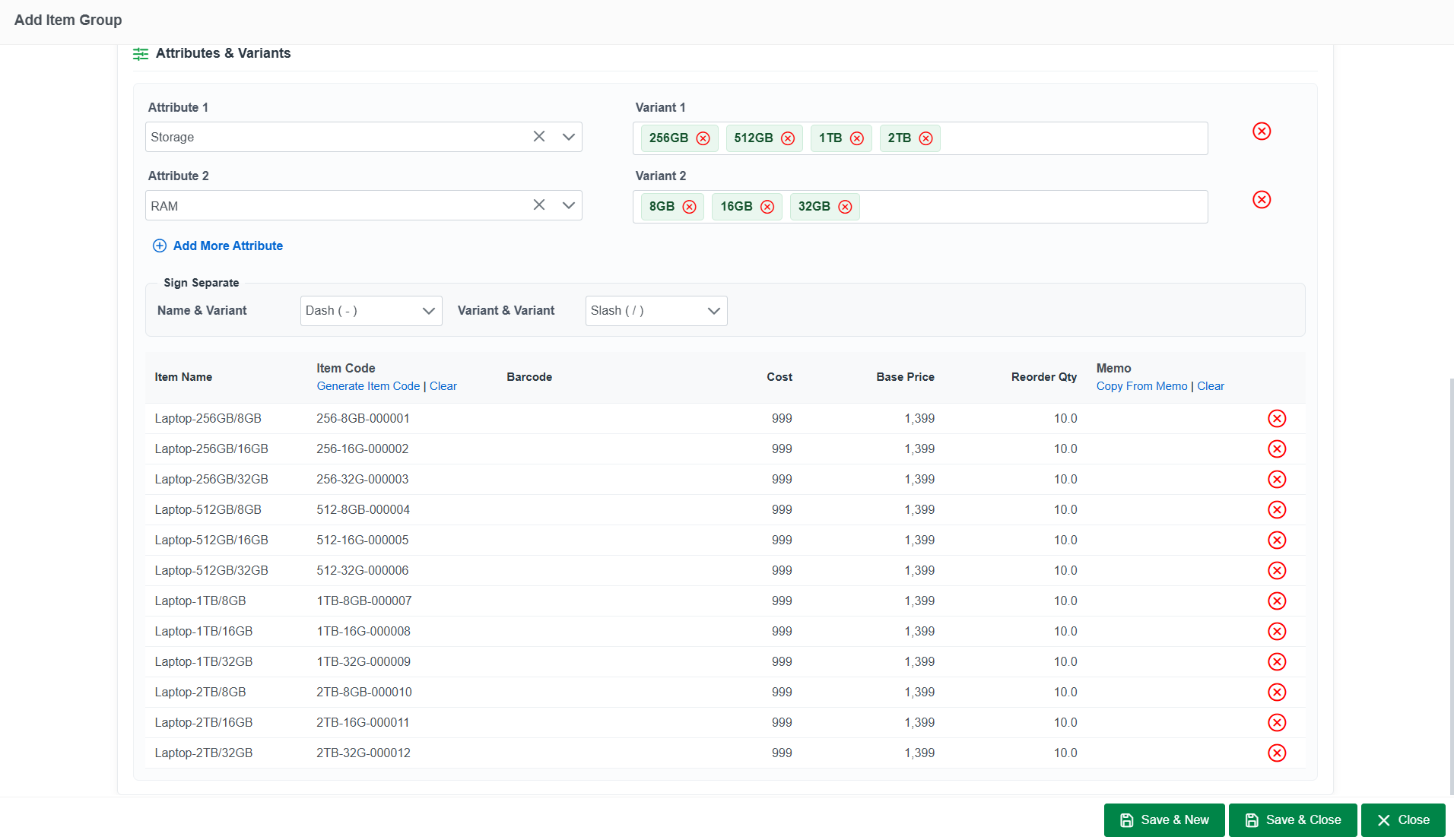
Each value will be added separately and used to generate the item combinations.
5. Generate Item Variants
Once you have entered the attribute values, the system automatically generates the combinations.
For example:
3 Storage options × 3 RAM options = 9 items
The system generates:
- Laptop - 256 GB / 8 GB
- Laptop - 256 GB / 16 GB
- Laptop - 256 GB / 32 GB
- Laptop - 512 GB / 8 GB
- Laptop - 512 GB / 16 GB
- Laptop - 512 GB / 32 GB
- Laptop - 1 TB / 8 GB
- Laptop - 1 TB / 16 GB
- Laptop - 1 TB / 32 GB
This allows you to create many related items without creating each item manually.
6. Generate Item Codes
After the variants are generated, you can use Generate Item Code to create item codes automatically.
Click Generate Item Code above the Item Code column.
A configuration window will appear.
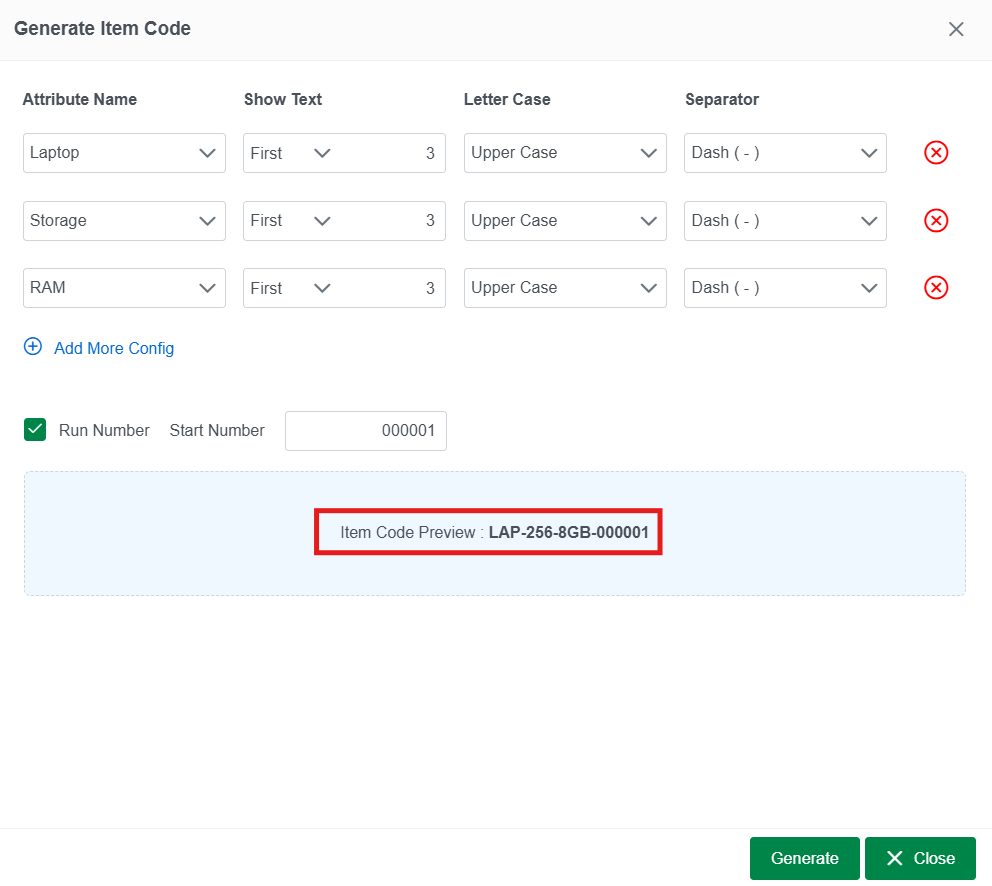
Configure the Item Code
For each part of the item code, select an Attribute Name, such as:
- Item Group name
- Attribute values
- Other available attributes
You can configure:
Show Text
Select which part of the text to display and specify the number of characters.
Letter Case
Choose the letter format, such as Upper Case.
Separator
Choose how each part of the item code is separated.
Click Add More Config to add additional parts to the item code.
Run Number
Enable Run Number if you want to add a sequential number to the generated item codes.
Enter the Start Number to define the beginning of the sequence.
Item Code Preview
The system displays an Item Code Preview so you can check the format before generating the codes.
Review the preview, then click Generate to create the item codes.
Click Close if you do not want to generate the codes.
7. Configure Variant Details
After generating the variants, you can configure the details for each item, including:
- Item Code
- Barcode
- Cost
- Base Price
- Reorder Qty
- Memo
You can also use Copy From Memo to copy the Item Group memo to the generated variants.
8. Save the Item Group
After reviewing the generated variants and completing the required information, click Save.
The system will create the generated items under the Item Group.
Quick Flow
Settings → Preference → Item
→ Enable Active Attributes and Variants in Item Group
→ Save
Then:
Item → Item Group → Add Item Group
→ Enter Item Group information
→ Attributes & Variants appears below
→ Select Attributes
→ Enter each Variant Value and press Enter
→ Review Generated Variants
→ Generate Item Codes if needed
→ Configure Variant Details
→ Save