Vendor settings allow you to configure vendor records and purchase transaction preferences in LocalizeBook.
Navigation: Settings > Preference > Vendor
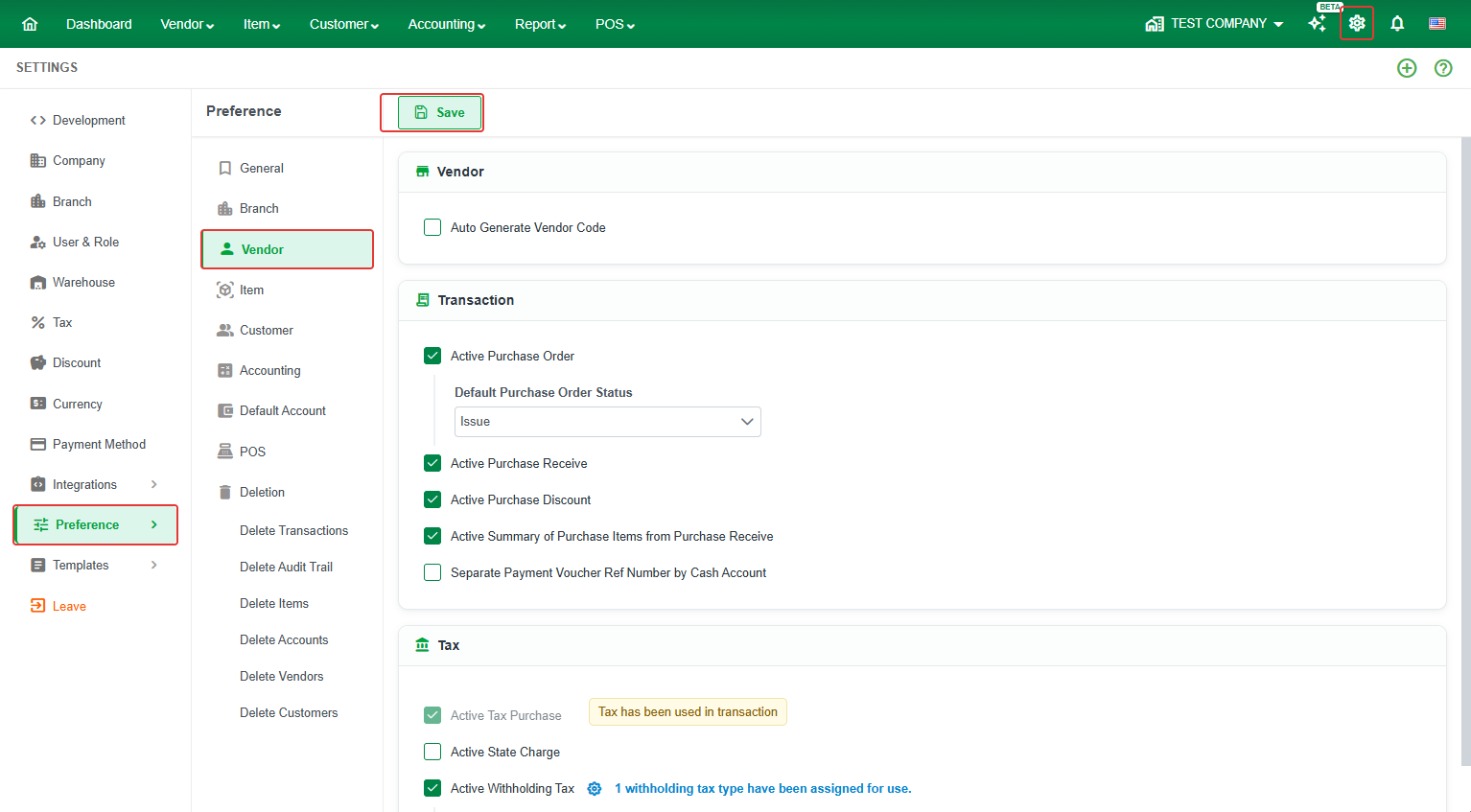 1. Vendor
This section allows you to configure how vendor records are managed.
- Auto Generate Vendor Code – Automatically generates a unique vendor code when a new vendor is created, eliminating the need to enter the code manually.
2. Transaction
This section allows you to enable and configure purchase transaction features.
- Active Purchase Order – Enables the Purchase Order feature, allowing you to create and manage purchase orders. When enabled, you can also set the Default Purchase Order Status for newly created purchase orders, such as Issue.
- Active Purchase Receive – Enables the Purchase Receive feature, allowing you to record goods received from vendors before recording the purchase transaction.
- Active Purchase Discount – Enables the discount feature for purchase transactions, allowing you to apply discounts when recording purchases.
- Active Summary of Purchase Items from Purchase Receive – Automatically summarizes items recorded in Purchase Receive when creating a purchase transaction, helping reduce manual data entry and maintain consistency between received goods and purchase records.
- Separate Payment Voucher Ref Number by Cash Account – Enables a separate payment voucher reference number sequence based on the Chart of Accounts associated with each payment method. For example, you can use Cash on Hand for the Cash payment method and Cash in Bank for the ABA payment method.
- How It Works: To initialize the numbering sequence, manually enter the first reference number for each account when creating a transaction. For example, enter
Cash001for Cash on Hand andABA001for Cash in Bank. LocalizeBook will recognize the reference number and automatically generate the next sequential number for subsequent transactions using the same account.
Example:
- Cash payment method: The first Cash Expense uses
Cash001. The next Cash Expense using the same account will automatically generateCash002. - ABA payment method: The first Cash Expense uses
ABA001. The next Cash Expense using the same account will automatically generateABA002.
This feature helps maintain separate reference number sequences for each cash or bank account, making payment transactions easier to identify and track.
- Warning: Once this feature is enabled, the payment voucher reference number sequence will not reset automatically by month or by year. Even if you manually change the reference number format to include a month or year, the system will continue the existing sequence for each account rather than automatically restarting the numbering period. The sequence will return to the standard numbering behavior only after this setting is disabled.
- Note: The initial reference number must be entered manually for each account to establish its numbering sequence. Use a consistent reference number format for each account to ensure proper tracking.
3. Tax
This section allows you to configure tax-related features for purchase transactions.
- Active Tax Purchase – Enables the application of purchase tax to purchase transactions. Once tax has been used in a transaction, this setting cannot be turned off, and the system displays the message “Tax has been used in transaction.”
- Active State Charge – Enables the State Charge feature for purchase transactions, allowing applicable state charges to be recorded.
- Active Withholding Tax – Enables the Withholding Tax feature for purchase transactions, allowing applicable withholding tax to be recorded when processing purchases. When enabled, the Contact Tax Type field becomes available in the tax information section of both vendor and customer records, allowing you to select the appropriate tax type for each contact. If this feature is disabled, the Contact Tax Type field will not be displayed, and users cannot select a contact tax type.