Use these settings for point of sale. Path: Settings > Preference > POS. The page has two tabs, Configure and Extra Description. POS requires the POS add-on.
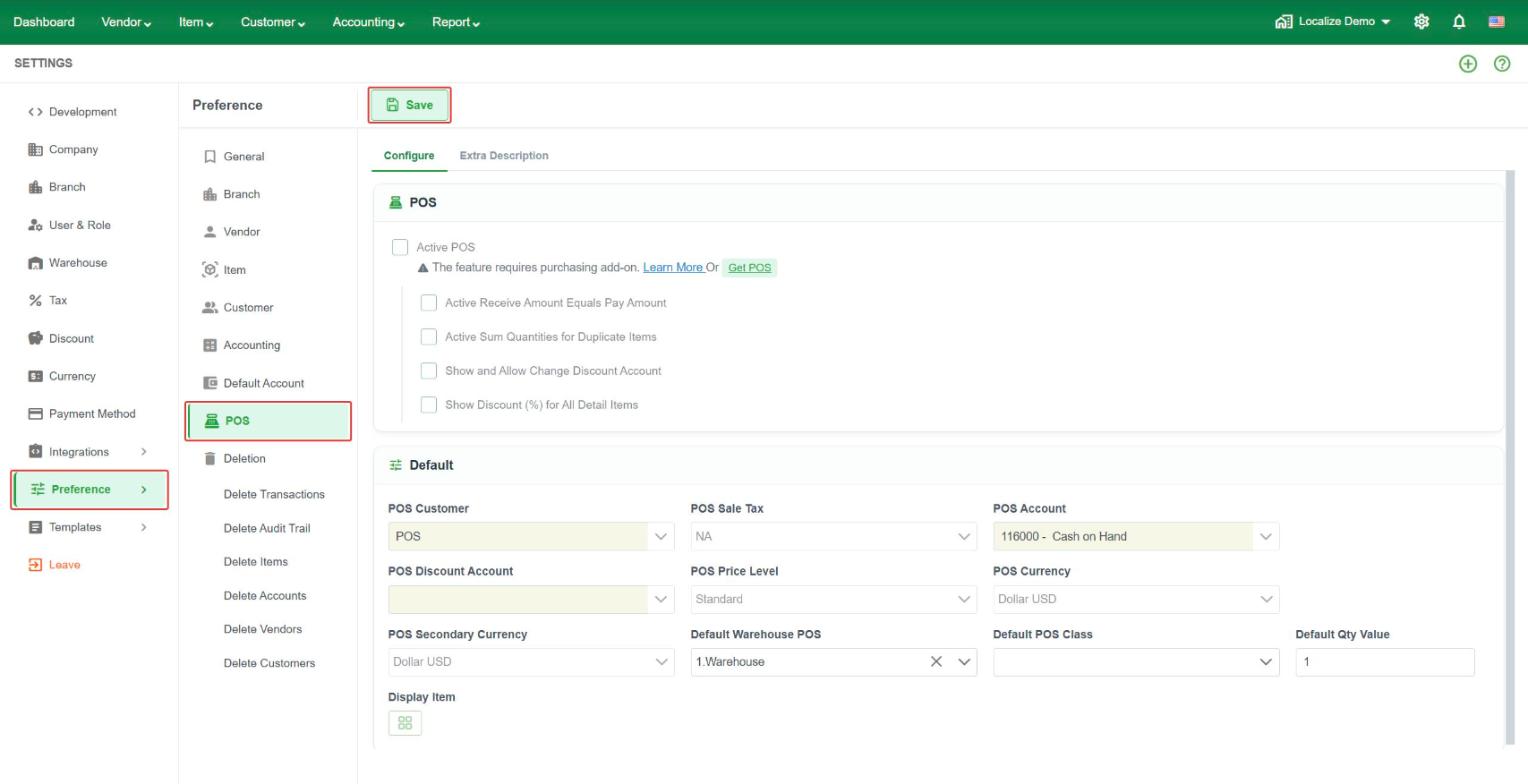
Configure: POS
- Active POS – turn on POS. The options below are available once it is on.
- Active Receive Amount Equals Pay Amount – fill the received amount with the amount to pay.
- Active Sum Quantities for Duplicate Items – when the same item is scanned or added again, add to its quantity instead of creating a new line.
- Show and Allow Change Discount Account – show the discount account and let the cashier change it.
- Show Discount (%) for All Detail Items – show a discount percentage on every item line.
Configure: Default
These values are filled in on every new POS sale.
- POS Customer – the customer used for walk-in sales.
- POS Sale Tax – the default sale tax.
- POS Account – the account that receives payment, for example Cash on Hand.
- POS Discount Account – the account used for discounts.
- POS Price Level – the price level used for POS sales, for example Standard.
- POS Currency and POS Secondary Currency – the main and second currency for POS.
- Default Warehouse POS – the warehouse that POS sales take stock from.
- Default POS Class – the class used for POS sales.
- Default Qty Value – the quantity filled in when an item is added.
- Display Item – how items are shown on the POS screen.
Extra Description
Click Add to create extra description lines for POS.