Batch Collection (CMP) lets you import many customer payments (collections) into LocalizeBook at once from an Excel file, instead of entering each payment by hand. It is useful when you migrate existing collection data or record a large number of customer payments.
Where to find it
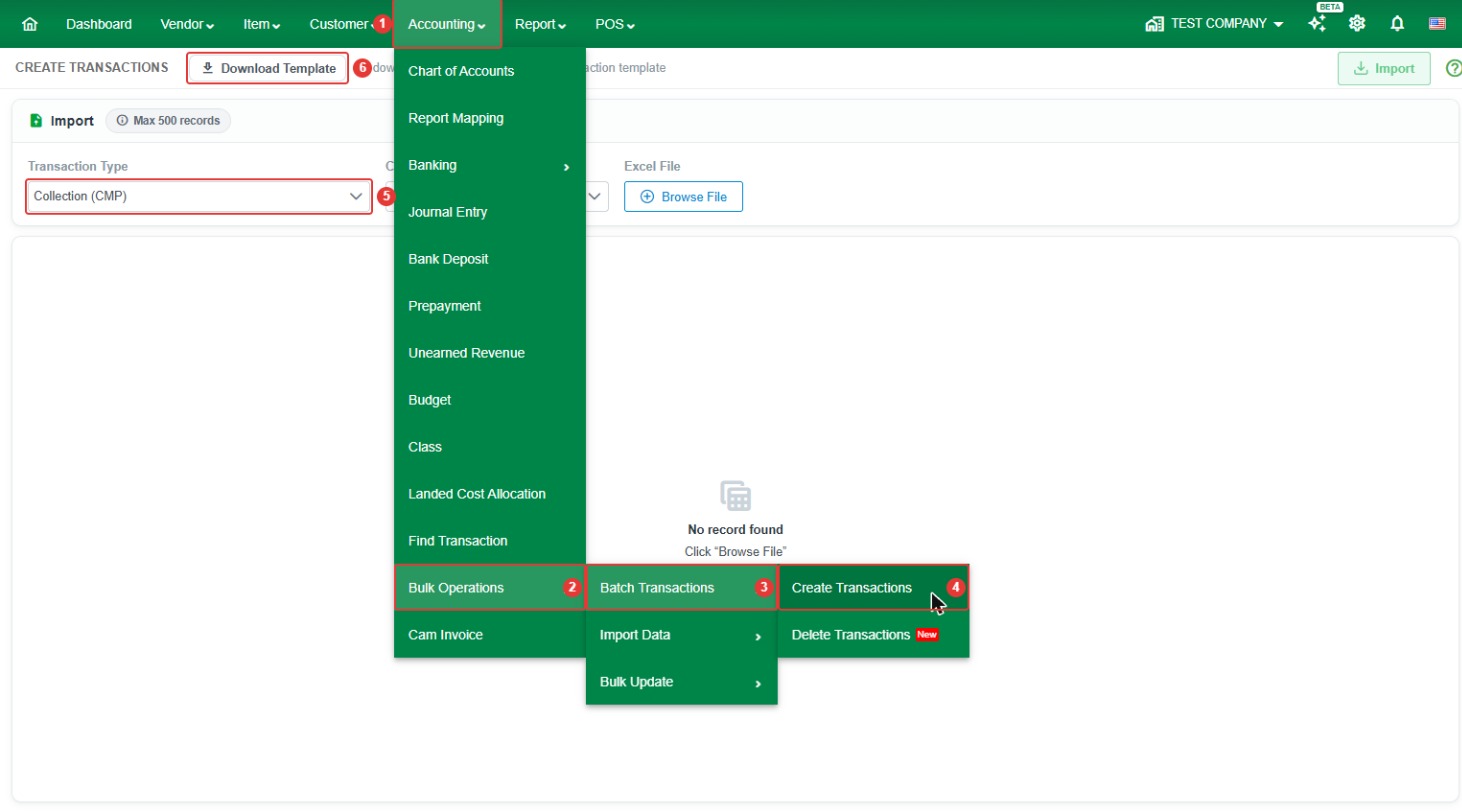
Go to Accounting > Bulk Operations > Batch Transactions > Create Transactions, then set Transaction Type to Collection (CMP).
- Record limit: up to 500 records per import.
- Currency: select the currency of the payments in the Currency field before you import.
- Before you start: the customers in your file must already exist in LocalizeBook.
How to import collections
Step 1. Go to Accounting > Bulk Operations > Batch Transactions > Create Transactions.
Step 2. Set Transaction Type to Collection (CMP) and choose the Currency.
Step 3. Click Download Template to download the batch collection template.
Step 4. Fill in the template (see the column guide below) and save the Excel file.

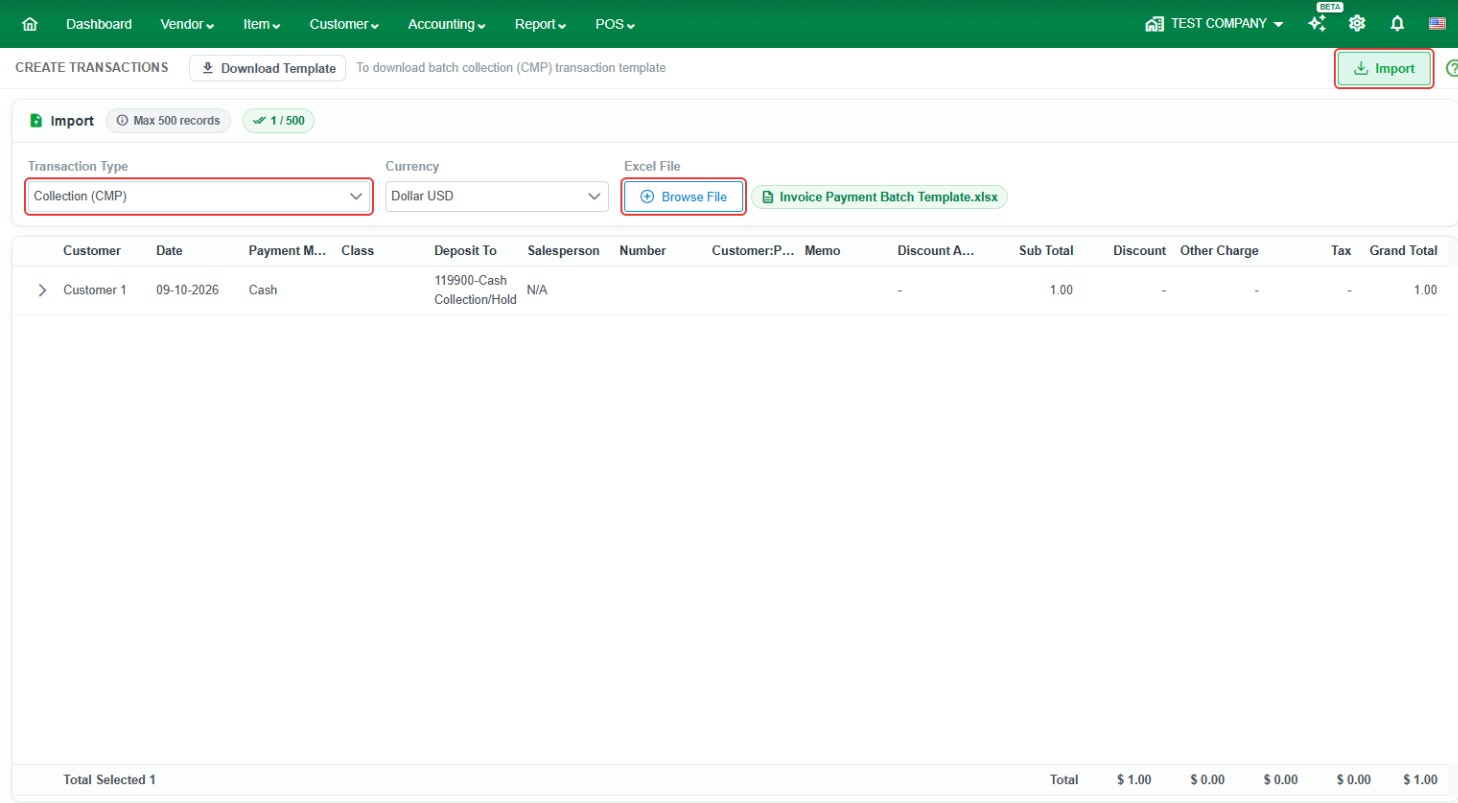
Step 5. Back in LocalizeBook, click Browse File and select your completed file. The rows are loaded on screen. If any row has a problem, an error message is shown so you can fix the file and load it again.
Step 6. When there are no errors, click Import to create the collections.
Template column guide
- TRAN_NUMBER – A unique number you create for each collection. All rows that belong to the same payment must use the same TRAN_NUMBER.
- CUSTOMER – The customer's name. It must exactly match a customer that already exists in LocalizeBook.
- DATE – The date the payment was received.
- PAYMENT_METHOD – How the customer paid, for example Cheque, Bank Transfer, or Cash.
- DEPOSIT_ACCOUNT_CODE – The account in your Chart of Accounts where the money is deposited, for example a bank account.
- PAYMENT_AMOUNT – The amount received from the customer. Leave it blank on rows used for an other charge.
- NUMBER – A reference number for the payment, such as the customer's cheque number.
- MEMO – A description for the whole payment.
- SALE_PERSON – The salesperson linked to this customer or sale.
- BRANCH_CODE – The branch code for this transaction.
- CLASS – The class for this transaction, used for internal tracking.
- EXCHANGE_RATE – The exchange rate, if the payment is in a foreign currency.
- DISCOUNT_AMOUNT – The amount of any early-payment discount given to the customer.
- DISCOUNT_ACCOUNT_CODE – The account code used to record the discount.
- DISCOUNT_PROJECT – The customer project the discount applies to, if any.
- MEMO_OTHER_CHARGE – A description of an adjustment, for example Bank Fee or Processing Charge.
- AMOUNT_OTHER_CHARGE – The amount of the adjustment. A fee is usually entered as a negative amount. Leave it blank on the main payment row.
Common questions
How many collections can I import at once? Up to 500 records per import. Split larger files into several imports.
Why does my import show an error? The most common causes are a customer name that does not exactly match an existing customer, an account code that does not exist in your Chart of Accounts, or rows for the same payment that use different TRAN_NUMBER values.
How do I record a bank fee on a collection? Add a separate row with the same TRAN_NUMBER and fill in MEMO_OTHER_CHARGE and AMOUNT_OTHER_CHARGE (usually a negative amount). Leave PAYMENT_AMOUNT blank on that row.
How do I delete collections that were imported by mistake? Use Accounting > Bulk Operations > Batch Transactions > Delete Transactions and filter by Transaction Collection.