Batch Invoice & Sale Return lets you import many customer invoices and sale returns (credit memos) into LocalizeBook at once from an Excel file. Use it when you migrate unpaid invoices from another system, such as opening your A/R balance, or when you need to record a large number of sales.
Where to find it
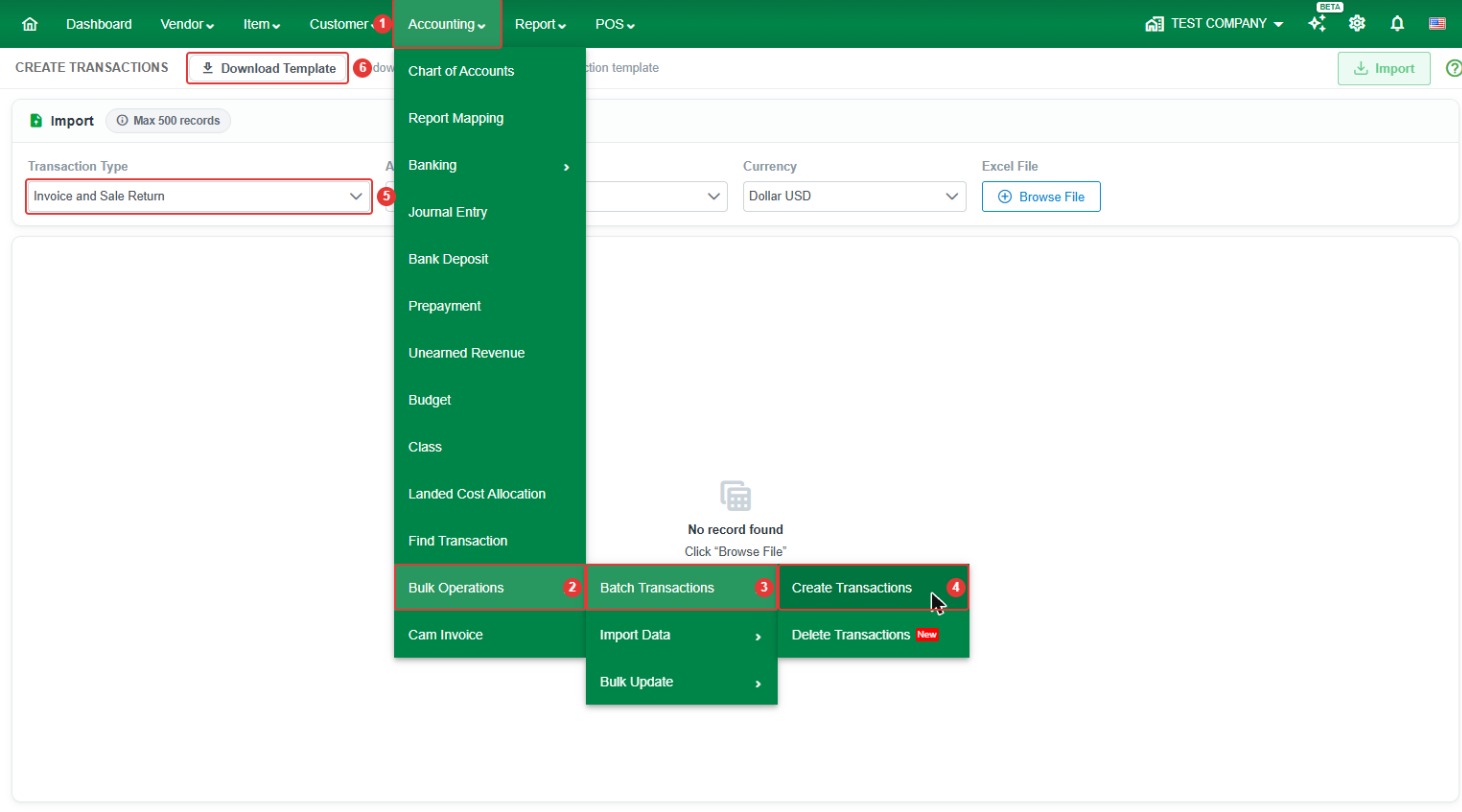
Go to Accounting > Bulk Operations > Batch Transactions > Create Transactions, then set Transaction Type to Invoice and Sale Return.
- Record limit: up to 500 records per import. Split larger files into several imports.
- Account Receivable: required. Select the A/R account the invoices will be posted to.
- Currency: select the currency of the invoices.
How to import invoices and sale returns
Step 1. Go to Accounting > Bulk Operations > Batch Transactions > Create Transactions.
Step 2. Set Transaction Type to Invoice and Sale Return. Select the Account Receivable account and the Currency.
Step 3. Click Download Template to download the template for this transaction type.
Step 4. Fill in the template (see the column guide below) and save the Excel file.

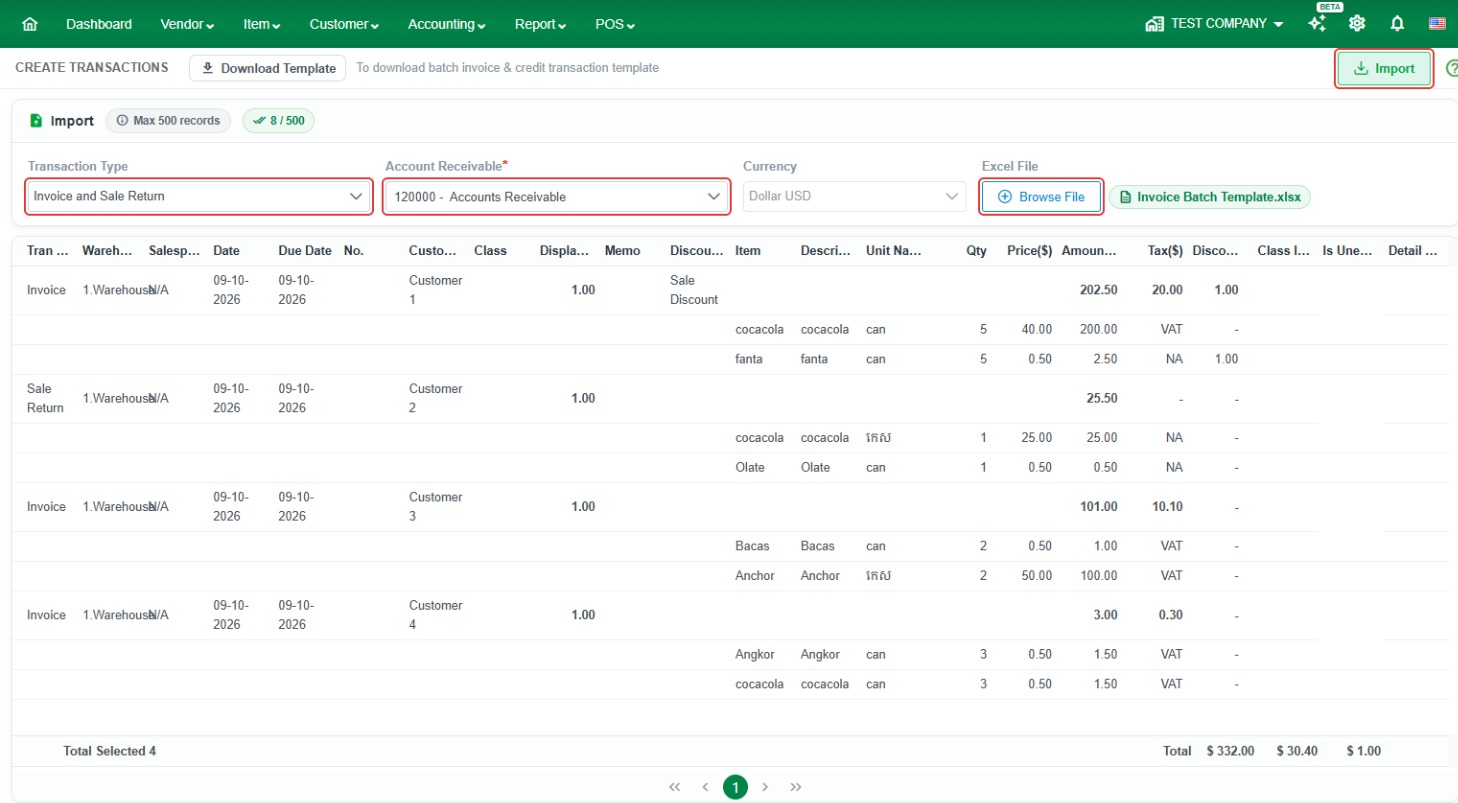
Step 5. Back in LocalizeBook, click Browse File and select your completed file. The rows are loaded on screen. If any row has a problem, an error message is shown so you can fix the file and load it again.
Step 6. When there are no errors, click Import to create the invoices and sale returns.
Template column guide
Transaction details
- TRAN-TYPE – Enter INVOICE for an invoice or CREDIT for a sale return.
- INVOICE TYPE – Enter Tax, Commercial, or Standard invoice.
- DATE (required) – The transaction date.
- NUM (required) – The invoice or credit memo number.
- CUSTOMER (required) – The customer's name.
- LOCATION – The warehouse for the sale. If left blank, the default location is used.
- SALESPERSON – The salesperson's name.
- TRAIN NO – The train number, if applicable.
- DISCOUNT ACCOUNT CODE – The Chart of Accounts code for the discount.
- CLASS – The class for the invoice.
- MEMO – A note for the invoice.
Item lines
- ITEM CODE – The item's unique code. Leave blank if the item has no code.
- ITEM NAME (required) – The product name.
- UNIT NAME – The item's unit name. Do not include symbols. If the item has no unit, enter N/A.
- QTY (required) – The quantity.
- PRICE (required) – The sale price per base unit.
- AMOUNT (required) – The total amount for the line.
- VAT – The VAT amount.
- DISCOUNT AMOUNT – The discount amount.
- CLASS ITEM – The class for the item line.
Common questions
How do I import a sale return (credit memo)? Use the same template and enter CREDIT in the TRAN-TYPE column.
How many invoices can I import at once? Up to 500 records per import.
Which A/R account is used? The account you select in the Account Receivable field on the Create Transactions page. When migrating opening balances, select your new A/R control account.
Why does my import show an error? Common causes are a name (vendor, customer, or item) that does not exactly match an existing record in LocalizeBook, an account code that does not exist in your Chart of Accounts, a missing required column, or a file with more rows than the record limit.
How do I delete transactions that were imported by mistake? Go to Accounting > Bulk Operations > Batch Transactions > Delete Transactions, set the Transaction filter to Invoice or Sale Return, click Search, select the transactions, and click Delete Transactions.