Batch Sale Order lets you import many sale orders into LocalizeBook at once from an Excel file, instead of entering each sale order by hand. Use it to migrate open sale orders from another system or to create a large number of sale orders in one go.
Where to find it
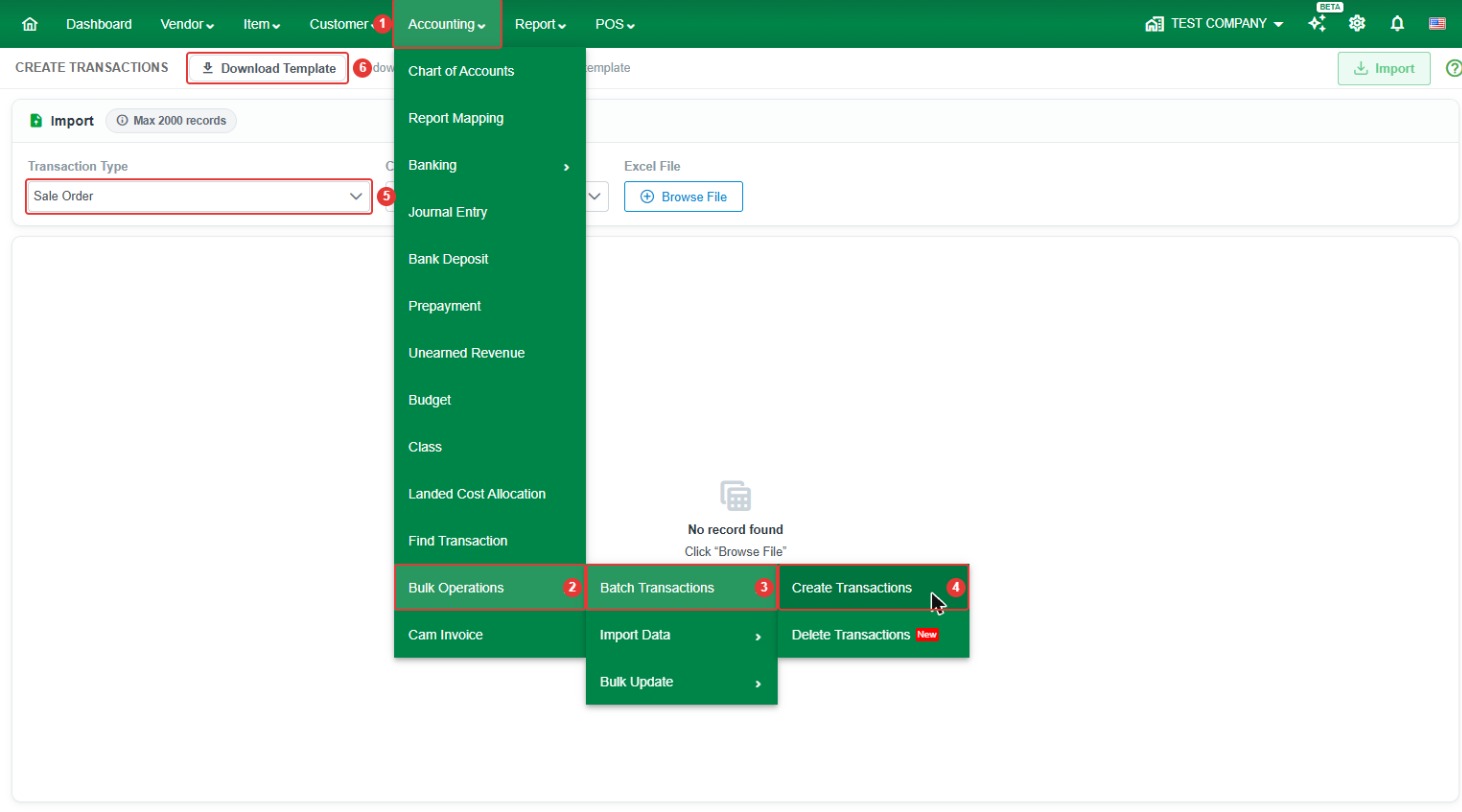
Go to Accounting > Bulk Operations > Batch Transactions > Create Transactions, then set Transaction Type to Sale Order.
- Record limit: up to 2000 records per import. Split larger files into several imports.
- Currency: select the currency of the sale orders.
- Before you start: the customers, items, and units in your file must match the records set up in LocalizeBook.
How to import sale orders
Step 1. Go to Accounting > Bulk Operations > Batch Transactions > Create Transactions.
Step 2. Set Transaction Type to Sale Order. Select the Currency.
Step 3. Click Download Template to download the template for this transaction type.
Step 4. Fill in the template (see the column guide below) and save the Excel file.

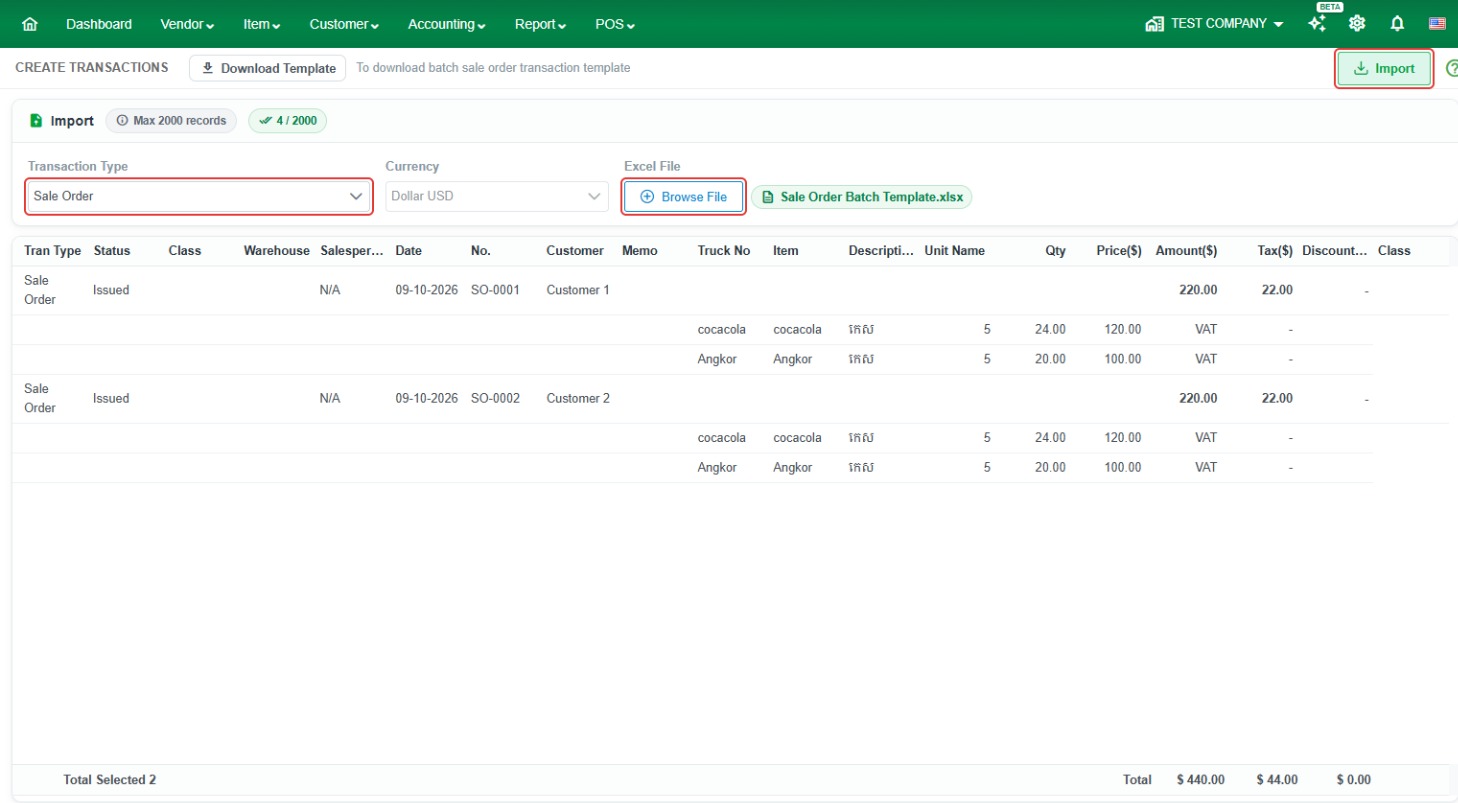
Step 5. Back in LocalizeBook, click Browse File and select your completed file. The rows are loaded on screen. If any row has a problem, an error message is shown so you can fix the file and load it again.
Step 6. When there are no errors, click Import to create the sale orders.
Important: Always use the latest template downloaded from LocalizeBook. Do not change the column names or the structure of the template.
Multiple items in one sale order
To put several items on one sale order, add one row per item and use the same sale order number (NUM) on each row. You only need to enter the customer on the first row. For example:
NUM | CUSTOMER | ITEM NAME | QTY |
SO-0001 | ABC Company | Item A | 10 |
SO-0001 | Item B | 5 | |
SO-0001 | Item C | 20 |
This creates one sale order, SO-0001, for ABC Company with three item lines.
Template column guide
Order details
- TRAN TYPE (required) – Enter SALE_ORDER.
- DATE (required) – The order date.
- CUSTOMER (required) – The customer's name, exactly as set up in LocalizeBook.
- NUM – The sale order reference number.
- STATUS – The order status. If left blank, it is set to ISSUED.
- LOCATION – The warehouse for the order. If left blank, the default location is used.
- SALE_PERSON – The salesperson's name. If left blank, the default salesperson is used.
- CLASS – The class for the whole sale order.
- MEMO – A description of the order. Leave blank if not needed.
Item lines
- ITEM CODE – The item's unique code. Leave blank if the item has no code.
- ITEM NAME (required) – The item name, exactly as set up in LocalizeBook.
- UNIT NAME – The item's unit name, as set up in LocalizeBook. If the item has no unit, enter N/A.
- QTY (required) – The quantity.
- COST (required) – The price per base unit.
- AMOUNT (required) – The total amount for the line.
- VAT – If the item is taxable, enter the sales tax name. Otherwise leave blank.
- DISCOUNT AMOUNT – The discount amount. If left blank, the discount is 0.
- CLASS DETAIL – The class for the item line. Leave blank if not needed.
Common questions
How many sale orders can I import at once? Up to 2,000 records per import.
How do I add several items to one sale order? Use one row per item with the same NUM on every row, as shown in the example above.
What status do imported sale orders get? The value in the STATUS column. If it is blank, the status is ISSUED.
Why does my import show an error? Common causes are a name (vendor, customer, or item) that does not exactly match an existing record in LocalizeBook, an account code that does not exist in your Chart of Accounts, a missing required column, or a file with more rows than the record limit.
How do I delete transactions that were imported by mistake? Go to Accounting > Bulk Operations > Batch Transactions > Delete Transactions, set the Transaction filter to Sale Order, click Search, select the transactions, and click Delete Transactions.